10. Watching the HMI from another PC (Ring Remote View)#
Ring Remote View is a separate, optional add-on. It is not part of Ring itself, and not every station has it installed — ask your supervisor if you aren't sure. This chapter is for the two people involved in a session: the operator standing at the HMI panel, and the person watching from somewhere else. If you need to install, provision, or remove the add-on, that's a different job — see Installing Ring Remote View.
1. What it is, in one minute#
Ring Remote View lets somebody else look at the exact same Ring screen you have in front of you. Nothing about it changes what Ring does:
- It's a mirror, not a second copy. Nobody logging in remotely starts a second Ring. There is still one Ring, one screen, one connection to the controller — the remote viewer just sees a copy of what's already there.
- The controller is never touched by this add-on. Remote View has no path to the PLC of its own. Any button-press that reaches the controller still goes through Ring, the same as if you'd pressed it yourself.
- Watching is the default. Driving needs permission. Most remote accounts are set up view-only — they can see the screen and nothing else. A named few are set up so they can move the mouse and type, and even then, only after the person at the panel lets them in for that session.
- Every session is recorded. Remote View keeps a video recording of what happened, the same way a camera would. That's kept as evidence, not deleted when an account is removed.
The rest of this chapter covers the two sides of a session in turn: what you do if you're the one standing at the panel, and what you do if you're the one connecting from somewhere else.
2. If you're the person at the panel#
You don't need an account for this. Remote View only affects you when someone tries to connect, and it asks you first for every new connection — unless someone at the panel has just ticked the "auto accept" checkbox described below, which waves the next five minutes of requests through without asking again.
The prompt. When someone clicks Connect from their end, your screen shows a notification followed by a prompt naming exactly who is asking — for example:
Ring Remote View jbaker (jbaker) is asking to view or take control of this Ring HMI. Allow?
with a checkbox "Auto accept all connections for next 5 minutes" and two buttons, Allow and Deny.
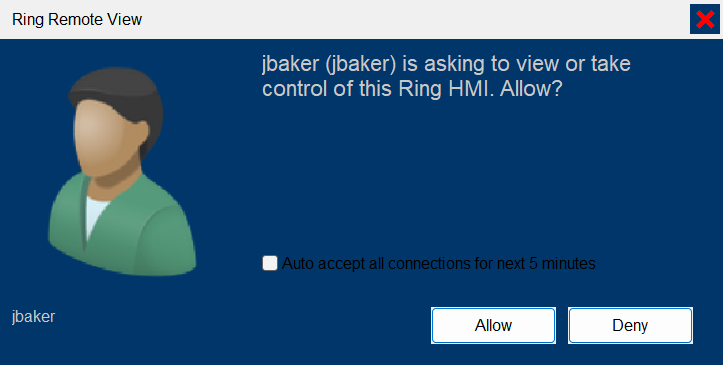
- Allow lets that session start. They'll see your screen from that point on, and — only if their account is set up for it — be able to move the mouse and type.
- Deny refuses it. Nothing is shown to them, ever, for that attempt.
- Leave the "auto accept" checkbox unticked unless the whole shift has agreed to it in advance. It's there for MeshCentral (the software behind Remote View), but ticking it means the next five minutes of requests get in without asking you again — not something to do on a whim on a live glue kitchen.
If nobody answers, the answer is no. If the prompt sits on screen for about a minute with no response, the request is refused automatically and the other end is disconnected. There is no setting anywhere that lets an unattended panel wave a connection through — that's deliberate.
"The panel has priority." This is the etiquette the controls engineer signed off on, and it applies every time, not just when something feels wrong:
- The operator standing at the HMI wins every disagreement, always. If you're not comfortable with someone driving, say so and take it back.
- One controller at a time. Everyone else who's watching stays view-only while someone else is driving.
- Whoever is remote should announce before taking control — a radio call or a phone call, not just the prompt appearing. If a prompt shows up with no warning, that's your cue to ask why before you click Allow.
- Deny anything you didn't expect, and mention it to your supervisor. An unannounced prompt is a "no," not a click-through.
- A Terminal or Files prompt should be impossible. Remote accounts are set up so they can never open a command line or browse files on this PC — only the screen. If you ever see a prompt asking for anything other than viewing/driving the desktop, deny it and tell your supervisor right away — it would mean something about the setup has changed.
- Say when you let go. If you handed control to someone remote, say "you have it back" out loud when you're taking the mouse again, the same as you would with anyone else standing at the panel.
3. If you're the remote person#
This is the other side of the same session — what to do if you're the one connecting from an office PC, or, if the plant has enabled that option, from home.
Open a browser and go to the address you were given. Usually that's the HMI computer's name, something like
https://<hmi-pc>:8443/, though some plants hand out its numeric LAN address instead — either form can work, as long as it's the exact address issued for this HMI. If your office has bookmarked this for you, it's the same address. Remote View only accepts a short, specific list of addresses for a given HMI PC; if you type something that isn't on that list, the page loads only as far as: "Invalid origin in HTTP request, click to reconnect." If you see that, go back and use the exact address you were handed rather than guessing at a variation of it.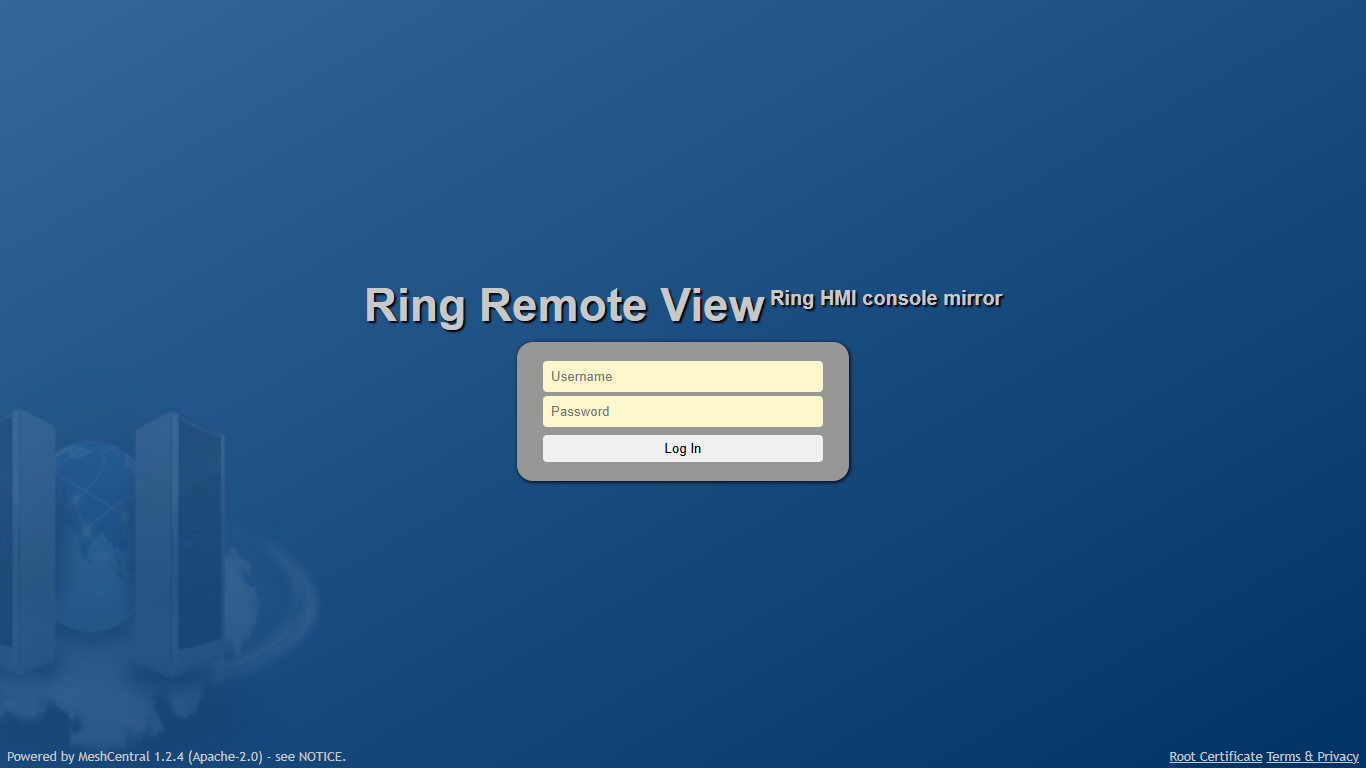
The Ring Remote View login page in a browser. Accept the certificate warning, once. Your browser will warn you the site's certificate isn't from a recognized authority. That's expected — there's no in-plant certificate authority, and the plant's Remote View server is LAN-only with its own self-signed certificate. Trust it and continue; you'll only be asked once per browser or device.
Log in with the username and one-time password you were handed in person. (It should always be handed to you in person or by phone, never by email.)
Change the password when it asks you to. The one-time password only works once. The first time you log in you'll land on a page titled "Password change requested." with two password fields — set a real password there before you continue.
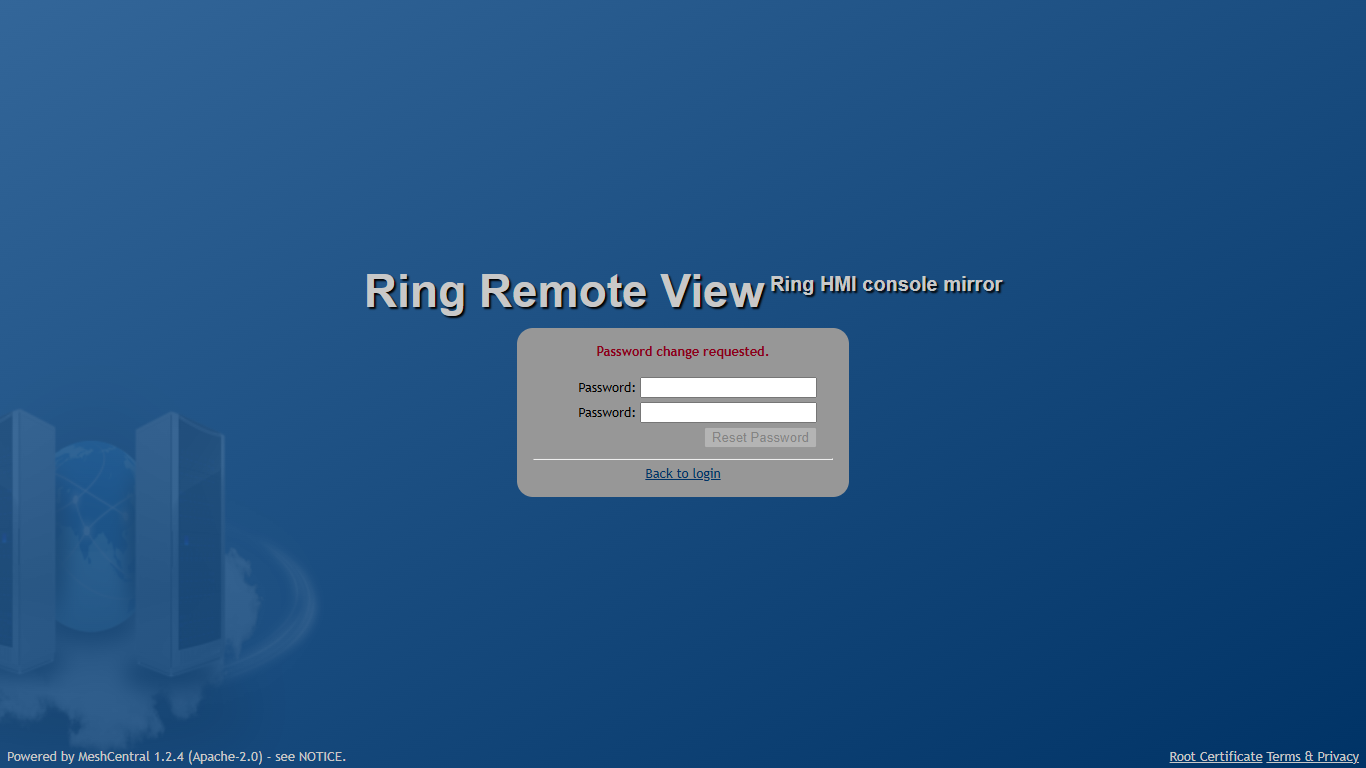
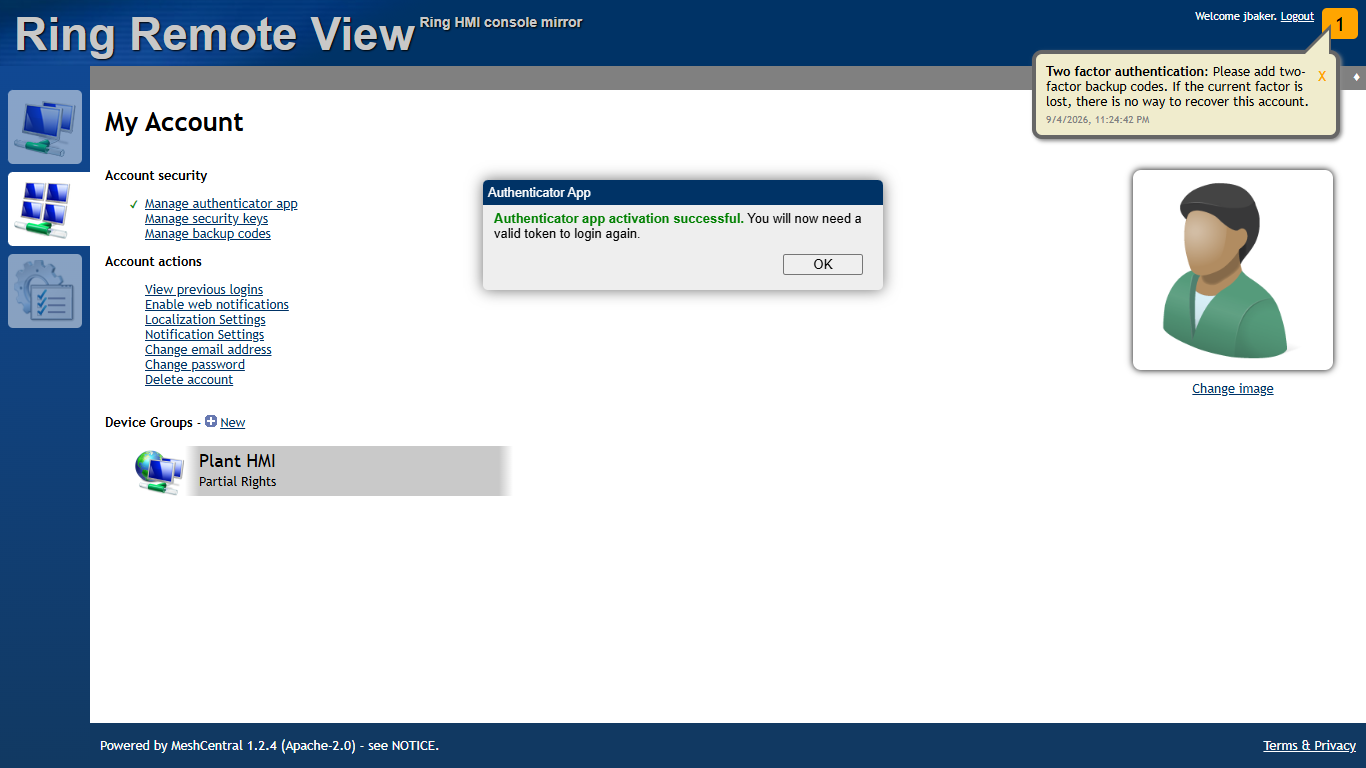
First login: the one-time password must be changed. Set up your authenticator app. Every account on this system — yours included — must enrol a phone authenticator app (like Google Authenticator) before it can do anything else. Go to My Account → Account security → Manage authenticator app, then either scan the QR code with your app or type in the secret shown next to it, and enter the current 6-digit code from the app to confirm.
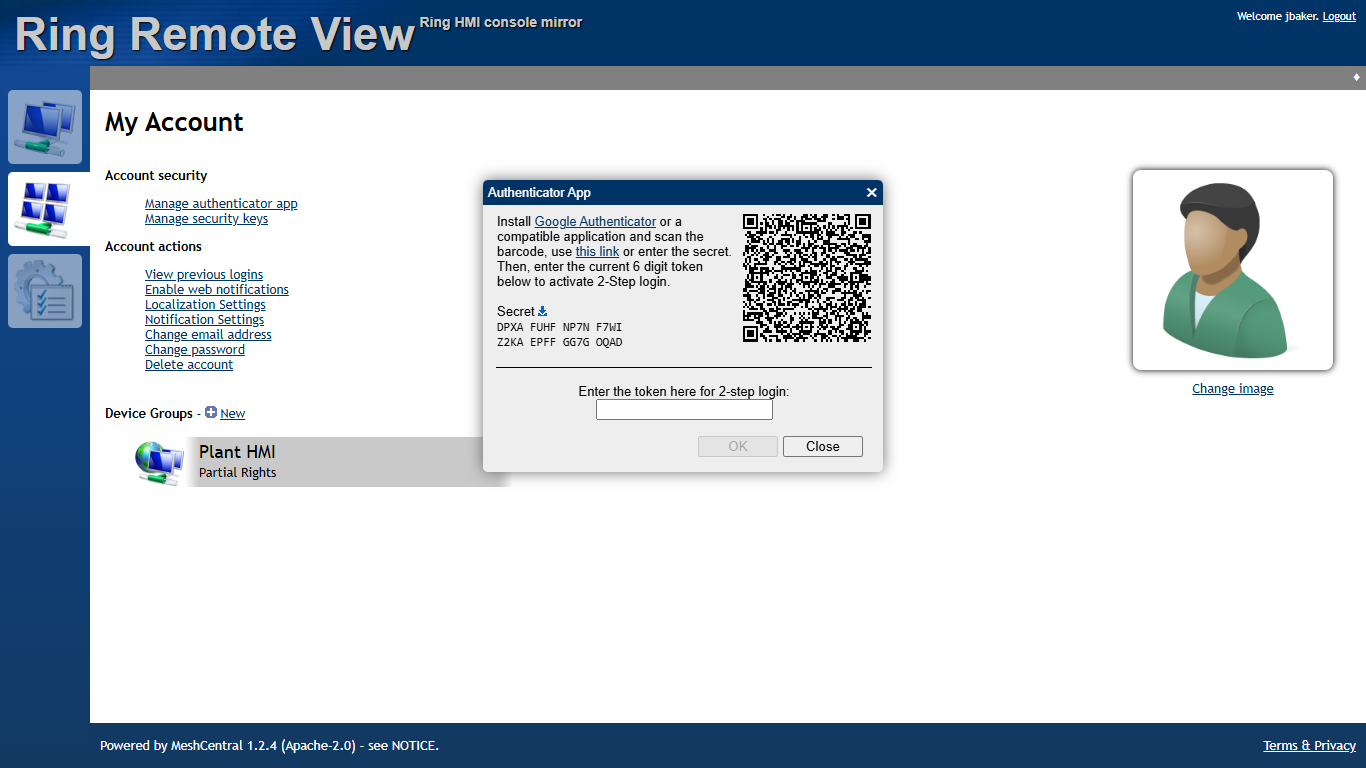
My Account, Account security, Manage authenticator app: scan the code or type the secret, then enter the current 6-digit token. Until you've done this, opening the HMI device shows a dead end instead of a screen — the message reads: "Unable to access this feature until two-factor authentication is enabled. This is required for extra security. Go to the "My Account" tab and look at the "Account Security" section." Enrolling is the fix — it's a one-time step.
From then on, every later login asks for a fresh 6-digit code after your password, on its own page.
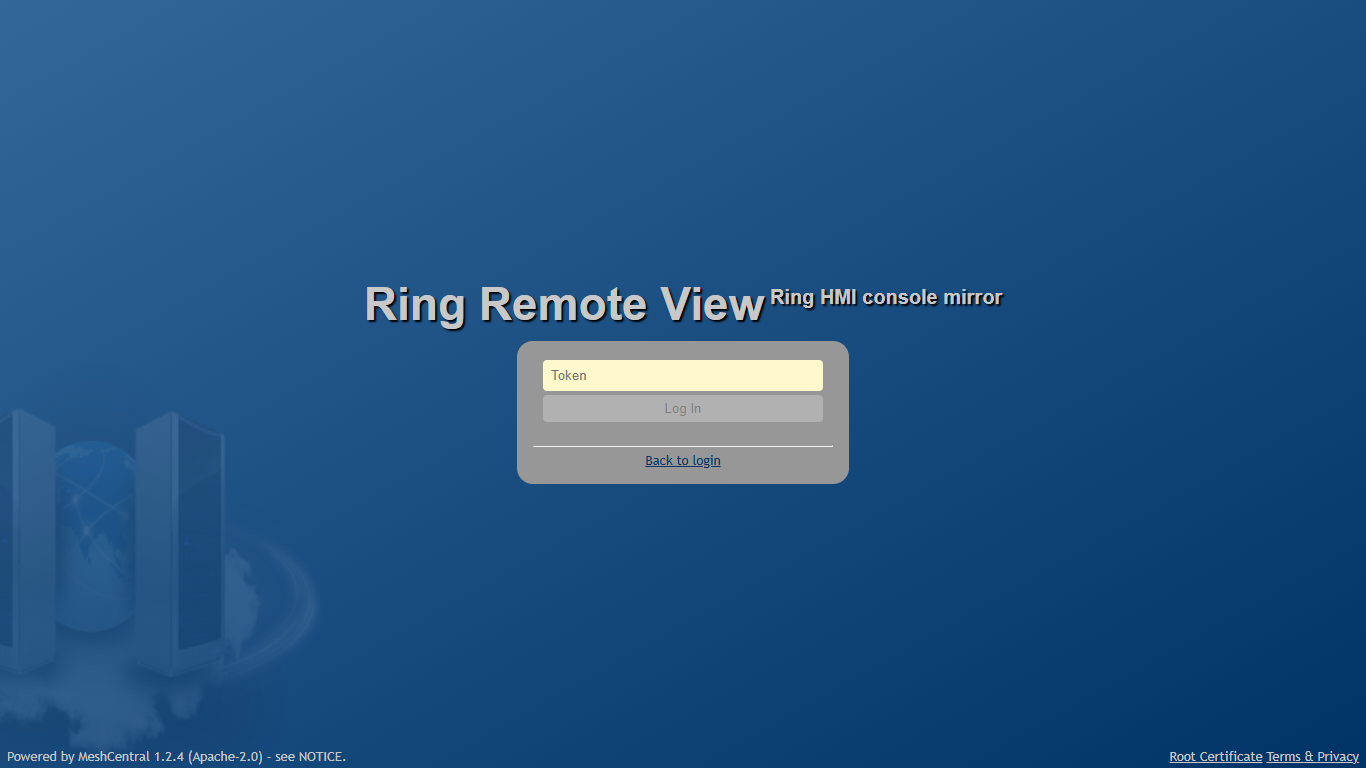
Every later login asks for the 6-digit code from the authenticator app. Find the HMI on My Devices. Once you're past login, you land on My Devices. Find the Plant HMI group and the HMI PC's entry inside it.
My Devices: the HMI PC in the Plant HMI group. Open the device, click the Desktop tab, then Connect. Your account only shows the tabs it's allowed to use — most remote accounts see just General, Desktop and Events. If you don't see a Terminal or Files tab, that isn't a mistake — those are switched off for remote accounts on purpose, so nobody watching the HMI can open a command line or browse the PC's files from here.
Wait for the person at the panel to let you in. After you click Connect, the Desktop tab shows "Connected" at the top and "Waiting for user to grant access..." where the screen will appear. Nothing is shown to you until the operator at the panel clicks Allow — there is no way to see the screen before they answer.
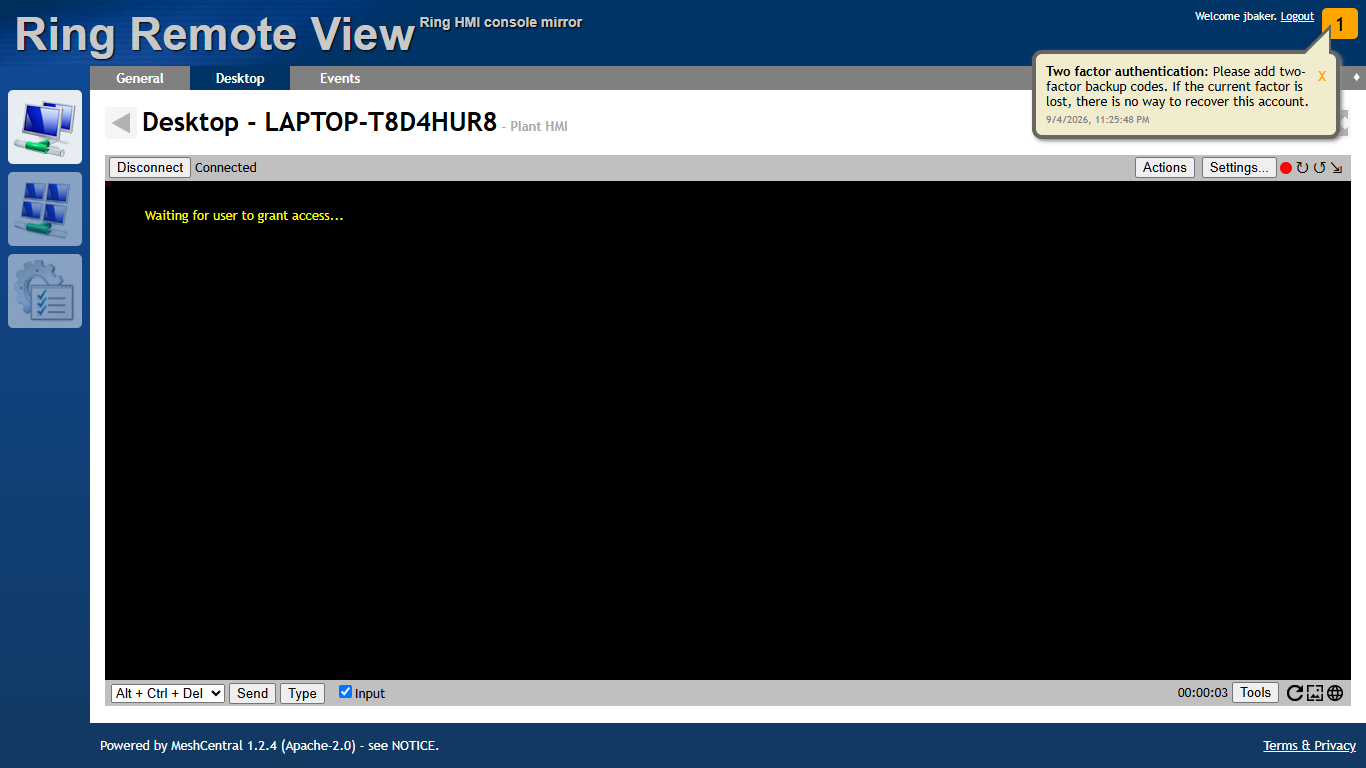
Desktop tab after Connect: "Waiting for user to grant access..." while the person at the panel decides. If nobody is at the panel, or the operator doesn't respond, the wait ends on its own after about a minute and the tab goes back to "Disconnected" — you never saw anything, and you'll need to try again once someone's there.
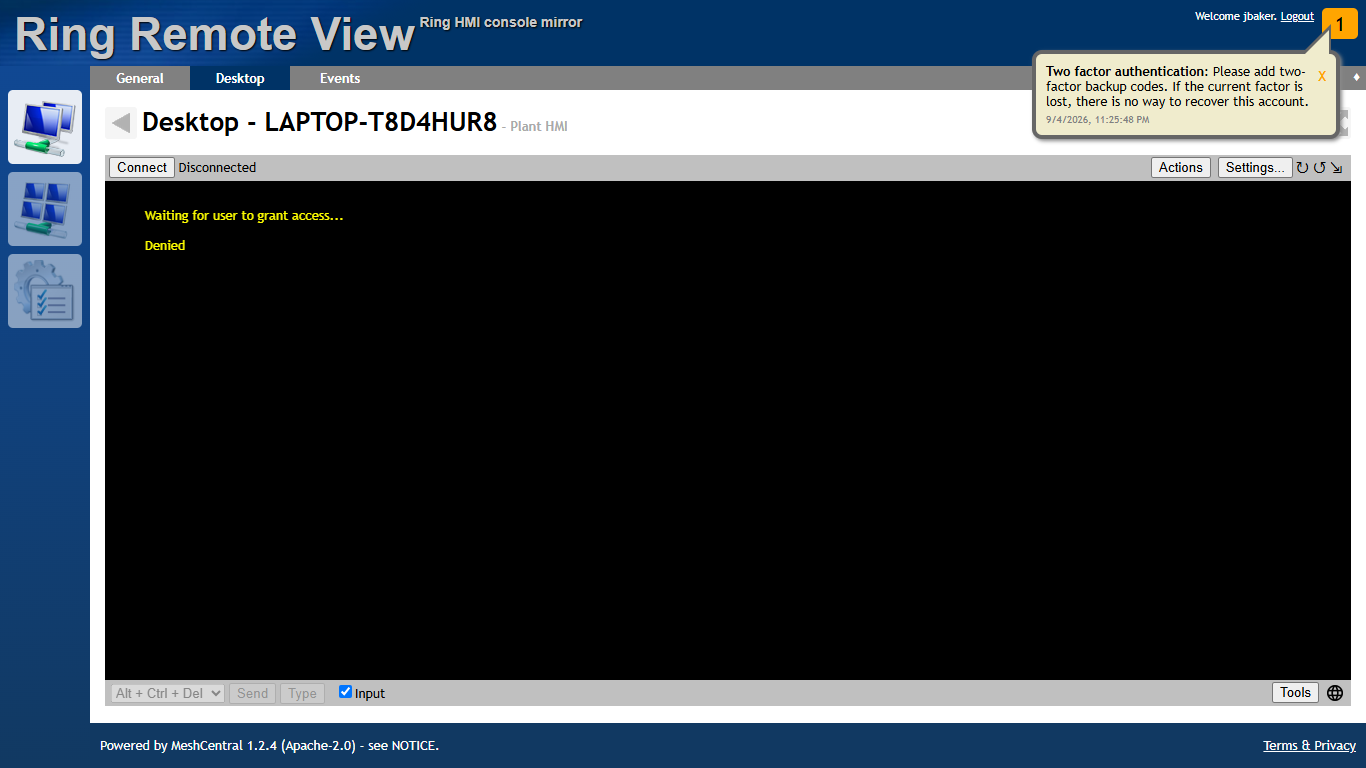
Nobody answered within 60 seconds: the session is refused and the Desktop tab shows Disconnected. Watch, or drive, depending on your account. Once the operator clicks Allow, you see the live screen. If your account is set up view-only, that's all it does — it's meant to only mirror the screen and not act on anything you click or type there. If your account is set up for control, you can move the mouse and type, the same as sitting at the panel — but the panel still has priority (see §2): announce before you touch anything, and stop the moment the operator asks you to.
Disconnect and say so. When you're done, leave the Desktop tab or close it. Then say so out loud or over the phone — "I'm off it" — the same courtesy the operator extends when they hand control back to you. Don't just vanish; the operator has no other way of knowing you've let go.
Log out when you're finished for the day. Use the account menu to log out of Remote View itself, not just close the browser tab — especially on a shared office PC.
If you're connecting from off-site. Some plants add an optional layer on top of everything above so an authorized person can connect from home or elsewhere off the LAN, instead of only from an office PC on the plant network. It's off by default and only exists where the plant has deliberately turned it on — ask your supervisor whether this applies to your station. Two things are different if it does:
- You log in twice. First to a separate outer gate (with its own multi-factor check) before you ever see the Ring Remote View login page, then to Ring Remote View itself exactly as described above (password, then your authenticator code). That's two logins, on purpose — it isn't a fault.
- A moving public IP address can log you out mid-session. If your internet connection's public address changes while you're connected — moving from Wi-Fi to mobile data, for instance — you'll be forced to log back in. That's a deliberate safety check tied to your address, not a dropped connection to chase down.
This off-site option is still being finished and verified end-to-end where a plant has turned it on — check with your supervisor or the installer for its current status before relying on it.
4. Common problems#
| What you see | Likely cause | What to do |
|---|---|---|
| The page won't load at all | Wrong address, this station doesn't have Remote View installed, or the office network can't reach it | Confirm the exact address with your supervisor; if this station never had the add-on installed, it will never load here |
| "Invalid origin in HTTP request, click to reconnect" | You typed an address that isn't on this HMI's approved list — a typo, or the wrong machine's address | Use the exact address you were handed, not a guess at a similar one |
| A blank "401" page before you even see a login form | Your browser resolved the HMI's name to an address that isn't on the approved list (can happen on some networks) | Tell IT; in the meantime try the address you were given again, or ask for the specific IP address to use |
| "Unable to access this feature until two-factor authentication is enabled" | You haven't enrolled your authenticator app yet | Go to My Account → Account security → Manage authenticator app (see §3) |
| Your request was denied, or nobody answered | The operator at the panel said no, or nobody was there | That's working as intended — call ahead next time so someone's there to click Allow |
| The screen freezes or the session drops mid-way | Network hiccup, or the operator disconnected you | Reconnect and try again; if it keeps happening, tell IT |
| You can't move the mouse or type anything | Your account is set up view-only, which is meant to prevent that | That's not a bug — ask your supervisor whether a control account is appropriate for what you need to do |
For the technical detail behind all of this — exact ports, permission masks, certificate rules, and the off-site option's network design — see Ring Remote View — reference.
Sources verified#
remote-view/README.md— what the add-on is and isn't (mirrors the one running Ring session, never opens a second Ring or a PLC connection), view/control rights masks, consent and recording behaviour, the domain-wide two-factor requirement and its post-login-enrolment caveat.remote-view/Install-RemoteView.ps1(the hostname / certificate-name /allowedOriginblock) — why the address must match what was issued for this HMI, and the exact "Invalid origin in HTTP request" wording.docs/production-readiness/REMOTE_ACCESS_RUNBOOK.md— Section 7 ("What the operator at the panel sees": the notification, the prompt, the 60-second no-response timeout, session recording) and Section 10 ("Who's driving" — operator etiquette, quoted in §2 of this chapter).docs/production-readiness/REMOTE_ACCESS_V2_RUNBOOK.md— the off-site option's double-authentication design and the roaming-IP forced re-login behaviour, both described as intentional, not a fault; and its own status line, which is why this chapter flags the off-site option as still being verified end-to-end.- Bench verification walkthrough, 2026-09-04 — the exact on-screen wording quoted in this chapter (the password-change page, the two-factor enrolment dialog, the "Unable to access this feature" message, the consent prompt text, the "Waiting for user to grant access..." and "Disconnected" states) and the screenshots this chapter uses, all observed on a real installed instance during that session.