2. Running batches#
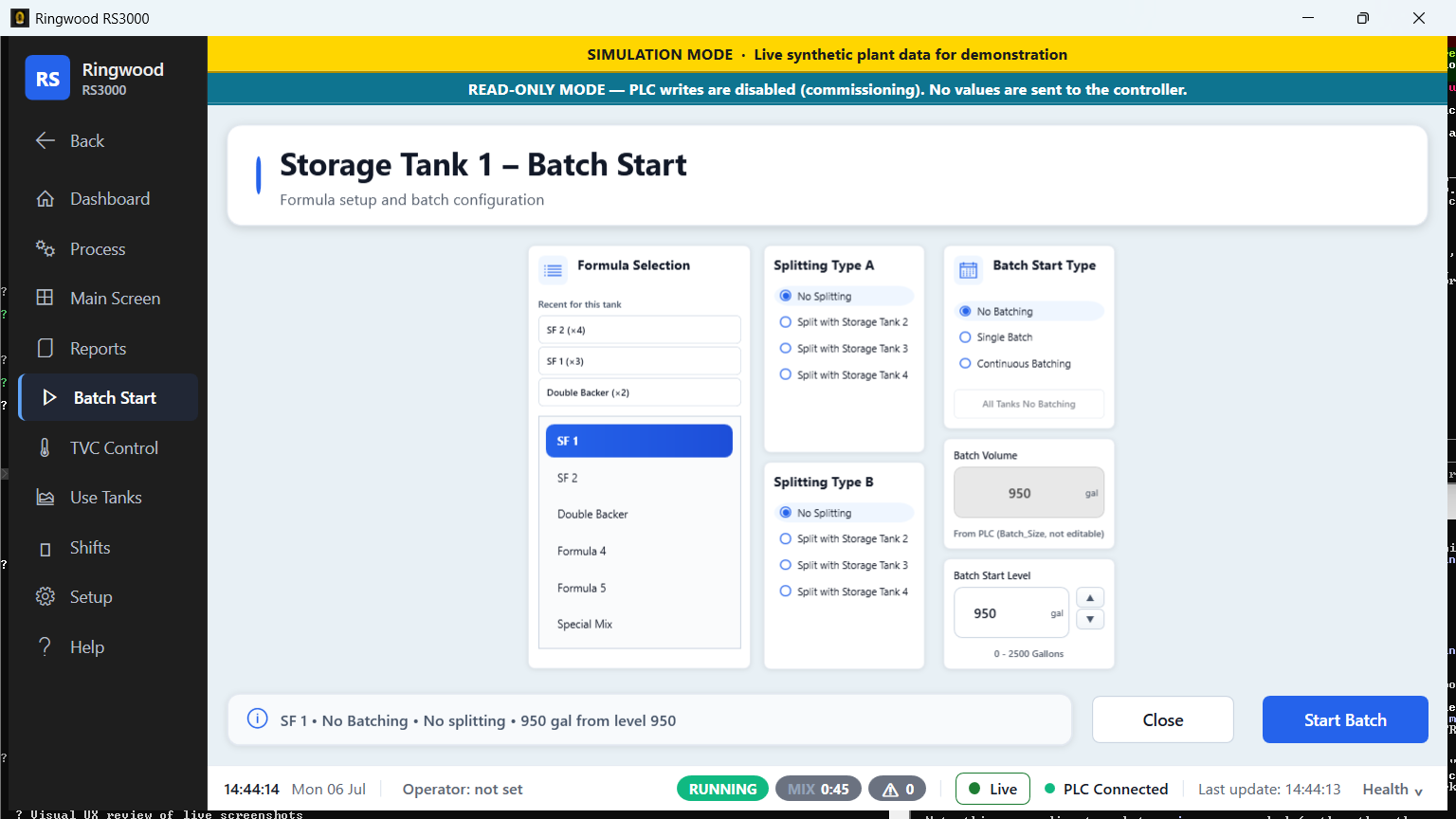
This is the operator's core daily task. The same workflow also appears inside the app at Help → Operator Runbook §5 (source: OPERATOR_TRAINING_RUNBOOK.md in the Ring repository); this chapter goes one level deeper on what each field and message means, what the controller checks before letting a batch through, and what a complete run looks like from the moment you open Batch Start to the moment the batch finishes.
2.1 Starting a batch#
Pick the tank#
NavBar → Batch Start opens a popup listing one entry per storage tank your plant actually has enabled — it is built from the tank roster configured in Setup, not a fixed list, so a disabled tank never appears here. Click a tank to open its Batch Start screen.
Pick the formula#
The Formula list on the left is always the controller's six formula-bank slots (1–6), shown under each slot's real name rather than "Formula 1" — Dutch names imported from the legacy system show up exactly this way (e.g. "SF 1"). It is the same six slots on every tank's Batch Start screen, not a per-tank filtered list. A recipe that only exists above slot 6 will not appear here at all — it has to be moved into a bank slot first via Setup → Formula Exchange (see 05-formulas-and-recipes.md §Formula bank exchange). If you have recently run formulas on this exact tank, a small Recent for this tank row above the list offers the top few as one-click shortcuts.
Choose splitting (optional)#
Two independent Splitting cards let you route part of the batch to a second tank:
- Splitting Type A — No Splitting, or split with any other storage tank on the plant. The exact list is per screen, not fixed: Tank 1's Batch Start screen offers 2/3/4, Tank 2's offers 1/3/4, Tank 4's offers 1/2/3, and so on — whichever tank you're on is never in its own list.
- Splitting Type B — same choices, applied after Splitting A.
Note: Splitting B can only name a tank if Splitting A also names one. The controller fills split stage A first and never reaches stage B if A is set to No Splitting — the screen blocks Start with an explanation if you try this combination.
Set the batch start type#
- No Batching
- Single Batch (the default)
- Continuous Batching — the controller keeps batching this tank automatically once armed; hover the tooltip on screen for the exact behavior.
A separate line beneath the radio buttons (shown only when relevant) always reflects what the controller itself currently reports for this tank's batch type — that line is never suppressed by your own unsent selection, so you can never be shown "No Batching" while the plant is actually auto-batching.
Batch Volume and Batch Start Level#
- Batch Volume is read-only — it mirrors the controller's own
Batch Sizevalue for the selected formula and cannot be typed into. - Batch Start Level is the level you want the tank to start at. Type a value or use the ▲/▼ buttons. The field's range is shown underneath and the box turns red if your value is outside it.
Start Batch#
Click the big Start Batch button. A confirmation dialog summarizes what is about to happen — tank, formula, batch volume, start level, batch type, and both splitting choices — with a green Yes, start and a grey No, cancel. No is the safe default (pressing Enter cancels, not starts).
Note: The confirmation always names the actual tank the write will land on, resolved from the tank roster — after a Setup remap this can differ from the screen's on-screen slot number, and the dialog says so.
What happens after you confirm#
Depending on the station's current mode, one of these happens:
| Station state | Result |
|---|---|
| Read-only mode (the pre-cutover default) | A message confirms the batch was validated but NOT sent to the PLC, and nothing was armed. |
| Demo/training mode | A message confirms nothing was sent — the screen would otherwise look identical to a real write. |
| PLC not connected | A warning says the batch values were not written because the heartbeat isn't live. |
| Write-enabled, connected | The tank's configuration is written to the controller first; the arm command (Start_Type) is written last, a few seconds later, so the splitting configuration is always in place before the controller can begin. |
Whenever the values on screen have been changed but not yet sent, an always-visible banner at the top of the screen says so in plain words — for example "PENDING — the values shown have NOT been sent to the PLC. Press START BATCH to send them." That banner is appended to, never replaced by, the read-only/not-connected notice, so both can show at once.
If Start Batch is disabled#
Before you can even try, Ring checks the controller's own eligibility rule for this tank. If the controller reports the tank cannot be armed (or Ring has not yet been able to read that capability from the controller), the Start Batch button is disabled and a short red line beside it explains why. This is a display-only check; the write path re-checks the exact same thing itself.
What success looks like#
The Start Batch button greys out, the batch status banner reads "Running — Batch #<N>" with a started-at timestamp, the ingredient table fills in line by line as each ingredient is dispensed, and a row appears immediately in the database so Batch Report / Batch History pick it up under today's date (source: OPERATOR_TRAINING_RUNBOOK.md §5.5 in the Ring repository).
What failure looks like#
- "PLC not connected — batch cannot start." — the screen's own banner, shown when the heartbeat isn't live; nothing is written. See 01-getting-started.md §PLC connection indicator.
- Batch Start Level out of range — the field itself turns red; the valid range is shown underneath it. See §Batch Volume and Batch Start Level above.
- The tank isn't eligible to batch — Start Batch is disabled with its own short red reason beside it, per §If Start Batch is disabled above — this is a controller-side fact (not installed, not a storage tank, or Ring hasn't read that capability yet), not something to work around by retyping values.
- Nothing happens at all when you click Start Batch — rare. Look for an exception dialog first; if there is none, navigate away and back to reload the screen. If it still does nothing, treat it like 07-troubleshooting.md §App frozen or crashed and escalate.
See also 07-troubleshooting.md §Batch won't start for this same list from the troubleshooting angle.
2.2 A normal morning batch, start to finish#
This is what a typical, uneventful batch looks like once writes are enabled, moment by moment — useful the first few times you run one, so you know what "normal" feels like before you have to recognize "not normal."
- Before you start anything. Glance at the status strip along the bottom: the PLC dot should be green ("PLC Connected"), the batch pill should read IDLE, and the alarm-count pill should read 0. If any of those are off, sort that out first — see 07-troubleshooting.md if the PLC dot is not green.
- Open Batch Start for your tank, pick the formula, confirm the start level is sensible for the shift, and click Start Batch. Confirm the dialog.
- Within a few seconds, the batch pill on the status strip flips from IDLE to RUNNING, and the Start Batch button greys out. If you are still on the Batch Start screen, its own banner clears — the "PENDING — not sent" text disappears because the values are now sent.
- Switch to the Dashboard (or just watch the status strip from wherever you are). The formula panel's live step tracker appears, showing every step in the recipe with the current one highlighted gold. The first few steps are usually short dosing steps — you will see each one's row flip to a check mark in turn as it completes, with a real duration recorded next to it.
- A mix step starts. The status strip's mix countdown pill appears next to the RUNNING pill, and on the Dashboard the Ingredient Addition and Mix Time progress bars fill in and the Mix Remaining number counts down. This is normal — a mix step is the one place you will see a countdown at all; Ring never shows a percent-complete or ETA for the whole batch on the live tracker itself, because step durations vary too much for that to be honest (the dedicated Make Ready Tank screen does show a whole-batch ETA, built from median historical durations for this recipe — see 03a-main-screen-reference.md §Make Ready Tank).
- The batch keeps stepping through the recipe: dosing steps, mix steps, maybe a viscosity measurement step, until the final steps run. In the tail of the batch (after the last ingredient is dosed), the Make Ready Tank screen's ETA line swaps from "time remaining" to "time in step" — that is expected, not a fault; see 03a-main-screen-reference.md §Make Ready Tank.
- Batch Done. The batch pill returns to IDLE, the Dashboard's formula panel switches to the idle "Formula Steps — Last Batch" view (no more Actual/Duration columns — see 03-screens-reference.md), and a green completion banner appears summarizing the finished batch. A row is already in the database — Reports → Batch Report or Batch History Report will show it under today's date immediately.
- Dismiss the completion banner when you are done with it, or just leave it — it stays up until you dismiss it or the next batch starts, so there is no rush.
Throughout all of this, nothing about starting or watching a batch stops you from doing anything else in Ring — checking Alarms, opening a report, starting a different tank's batch — the screen is a window onto the controller, not a lock on it.
2.3 Monitoring a batch in progress, in detail#
Three places show live batch state without you having to stay on the Batch Start screen, and it helps to know exactly what each one can tell you.
The bottom status strip (every screen)#
Batch state pill — reads one of three words, not two:
Pill text Meaning IDLE No batch step is active. RUNNING A batch step is active and the controller is not reporting a hold. HOLD The controller's own status word reports the system held — this overrides RUNNING even if a step index is still set, because the step number does not change while the plant is held and so cannot reveal a hold on its own. Mix countdown pill — visible only while a batch is active and a real countdown exists (never shown for an idle "0:00" or an unreadable value).
Active-alarm count pill — a live count, red when non-zero. Clicking it jumps straight to the Alarms screen.
All three pills dim and grow a "STALE · as of HH:mm:ss" tooltip once the underlying PLC reading is more than roughly 10 seconds old — a visual cue that what you're looking at may be lagging, not necessarily wrong.
The Dashboard's live formula tracker#
See 03-screens-reference.md §The formula/operations panel for the full breakdown of the step table, the stall-warning rule (a step running longer than roughly 2 minutes or 3× its own preset mix time turns amber), and the ON HOLD chip.
Main Screen → Storage Tank Group#
A live multi-tank overview — level, temperature, agitator/heater state, and a color-coded state ring per tank (green idle / yellow batching / red fault). See 03a-main-screen-reference.md §Storage Tank Group for the full card layout (a shorter day-to-day summary also exists inside the app at Help → Operator Runbook §6.1).
You can navigate freely to other screens; the batch keeps running on the controller regardless of what Ring is showing.
2.4 Hold, Resume, Reset#
NavBar → Process opens Hold, Resume, Reset and Alarms.
- Which of the three you see is decided by the controller, not by what
you pressed. Ring decodes the controller's own system status word
(
PC_Read_Integer[9]) into one of three states — Waiting, Hold, or Running — and the Process popup follows it exactly: while the controller reports Hold, Ring shows Resume and Reset and hides Hold itself; the rest of the time (Waiting or Running) it shows only Hold. That means a plant held from the PanelView, the legacy HMI, or by the ladder logic itself (including on the controller's first scan) still shows Resume/Reset here — nobody had to press anything in Ring first. A fault alone is not what shows Resume/Reset — only the controller actually reporting Hold does. - Hold itself disappears while the plant is held — that is the first thing to notice: if you don't see a Hold button, the plant is already on hold and Resume/Reset are showing instead. (If Ring cannot read the status word at all, Hold is shown anyway, fail-safe, so the one command that can never make things worse stays reachable.)
- Hold pauses the line. Safe to press at any time — any ingredient already dispensing finishes its drop, then everything pauses.
- Reset is offered, and may be sent, only from Hold — never while the controller reports Waiting (an idle plant) or Running. "Waiting" is not the same as "on hold": do not go hunting for a Reset button on an idle plant, because Ring will not show one.
- Every one of these three sends a real command to the controller once writes are enabled, and every one shows the same confirmation dialog first ("Send HOLD to the live PLC?" etc.) naming exactly what is about to happen.
The same day-to-day summary exists inside the app at Help → Operator Runbook §11, though its Resume/Reset wording predates this section and still describes the older, since-replaced local-flag behavior — this section and the controller's own status word are the current authority.
2.5 PLC connection loss mid-batch#
A batch runs on the controller, not inside Ring — Ring is a window onto it. If the PLC link degrades while a batch is running:
- The connection indicator and status strip pills reflect it immediately (see 01-getting-started.md). Numbers on screen freeze at their last good reading rather than jumping to zero.
- Ring keeps trying to read; light polling continues through a brief Stale period (a few seconds without a fresh heartbeat), but heavier reads and any new write are held back once the link is fully Starved or Disconnected.
- Writes require a fully live link. Even a merely "Stale" heartbeat is not enough to prove the controller's scan is actually advancing, so Ring refuses to send Start Batch, Hold/Resume/Reset, or any other command until the link shows fully Connected again.
- The batch itself is unaffected on the controller side purely by Ring losing its view — the plant keeps running whatever it was doing. What you lose is Ring's live picture of it, not the batch.
Warning: Never assume a batch has stopped just because Ring's numbers stopped updating. Check the connection indicator first. If it is genuinely down for more than a few minutes, follow 07-troubleshooting.md.
2.6 Stopping a batch you didn't mean to start#
There is no separate "Cancel" or "Abort batch" button anywhere in Ring. If you started the wrong formula, the wrong tank, or the wrong start level, the only way to stop it is the same Process → Hold used for a normal process pause, followed by a decision about what to do next. This is the honest, code-verified procedure — read it now, not while you're standing at the screen wondering.
NavBar → Process → Hold. A dialog asks "This will send HOLD to the live PLC. Continue?" — click Yes. No password is required for Hold — it is deliberately the one process command available to anyone at any time, because making the process safe must never wait on a supervisor being present. Any ingredient already mid-drop finishes dispensing, then everything pauses.
Confirm the hold actually landed — watch the batch pill on the bottom status strip switch to HOLD; don't assume it worked just because the dialog closed. Resume and Reset only appear in the Process popup once the controller itself reports the system on Hold — Ring will not show them on the strength of your own click, and it will not show them for a merely idle (Waiting) plant either.
Decide: resume, or abandon this batch.
- To carry on the same batch (you only needed to pause and check something), use Resume.
- If you started the wrong formula, tank, or start level and want to abandon this batch entirely, use Reset — next step.
Process → Reset, to abandon the batch. Reset is only offered, and only accepted, from Hold — Ring refuses to send it while the system reports either Running or the idle Waiting state. Unlike Hold, both Resume and Reset ask for a supervisor or admin password before their confirmation dialog even appears, because either one can restart or discard production. Confirm the dialog ("This will send RESET to the live PLC. Continue?").
What Reset does. Reset pulses the controller's own batch-reset command bit (
PC_Write_Integer[30].2) — the ladder's long-standing "Batch Reset" function — clearing the hold/fault latch so a fresh batch can be armed on that tank.What this does NOT do: Reset does not empty the tank, and it does not undo any ingredient that was already dispensed before you pressed Hold — that material is physically in the tank. If a meaningful amount was already dosed, treat the tank as "batch abandoned mid-recipe," not "empty," before deciding whether it's safe to re-batch or needs to be dealt with by hand.
What you'll see afterward. Ring has no single guaranteed status for a batch you Reset mid-run — what the row shows in Batch History / Batch Report depends on what the controller itself reports happened to it. You may see the batch close out as Aborted (the controller's own batch-complete data says so) or Interrupted (Ring's own bookkeeping closed a row it lost track of) — but it will not show as a normal Complete. If you need to be certain, look the batch number up (
Ctrl+B— Go to Batch) and read its Status column rather than assuming.Write it up. Note what happened in Shifts → Handoff Notes — which tank, the batch number if you have it, and what you told the next shift about the tank's actual contents. See 2a. Your shift, start to finish.
Warning: Hold and Reset are process controls, not safety devices. If the situation is unsafe rather than simply "wrong recipe," use the plant's physical Emergency Stop, not this procedure — see 1. Getting started — What Ring is.
Sources verified#
Ring/Views/BatchStart/StorageTank1.xaml,StorageTank1.xaml.cs,StorageTank2.xaml,StorageTank4.xaml,Lowmidtank.xaml(per-screen splitting option sets)Ring/Views/ConfirmBatchDialog.xamlRing/Views/FormulaPickerHelper.cs(FormulaSlotCount, positional index→formula-number contract; setup-wide enumeration kept separate)Ring/Services/PLC/SystemStatusWord.cs(HoldCommandVisible/ResumeCommandVisible/ResetCommandVisible/IsResetAllowed, :99-114, and the class comment at :32-45)Ring/Views/UserControls/NavBar.xaml,NavBar.xaml.cs(Hold/Resume/Reset dispatch,ConfirmProcessPlcCommand, :3430-3435)Ring/Views/Dashboard/DashboardView.xaml(live formula tracker, stall highlighting)Ring/Views/MainScreen/MakeReadyTank.xaml(finishing-phase ETA swap)Ring/Views/UserControls/StatusStripBar.xamlRing/ViewModels/BatchStatusStripViewModel.cs(ComputeBatchStateText— IDLE/RUNNING/HOLD)Ring/Services/PLC/PlcHeartbeatConnectionTracker.cs(AllowHeavyPlcPolling,AllowPlcWrites)Ring/Services/PLC/FormulaBankWriteInterlock.cs(write-outcome semantics referenced for context)Ring/Services/PLC/PcWriteInteger30BatchControlPlcService.cs(TagNames.Hold/.Reset=PC_Write_Integer[30].1/.2, momentary pulse)Ring/Views/UserControls/NavBar.xaml.cs(OnProcessHoldClicked,OnProcessResetClicked,BlockProcessCommandIfReadOnly,AuthorizePrivilegedProcessCommand— Hold needs no password, Resume/Reset do)Ring/Models/BatchRecord.cs(BatchRecordStatus— Running/Complete/Cancelled/Interrupted/Aborted)Ring/Services/Batch/BatchLifecycleRecorder.cs(ReconcileInterruptedOnStartup,ForceCloseStaleActiveBatch— how a row is honestly closed when Ring loses track of it)- OPERATOR_TRAINING_RUNBOOK.md §5, §5.5, §5.6, §6.1, §11 (referenced, not link-quoted; §11's own Resume/Reset wording is stale — see the note above)