3b. Use Tanks, Shifts, Setup and Help reference#
Continues from 3. Screens reference — Dashboard and 3a. Main Screen reference.
Use Tanks#
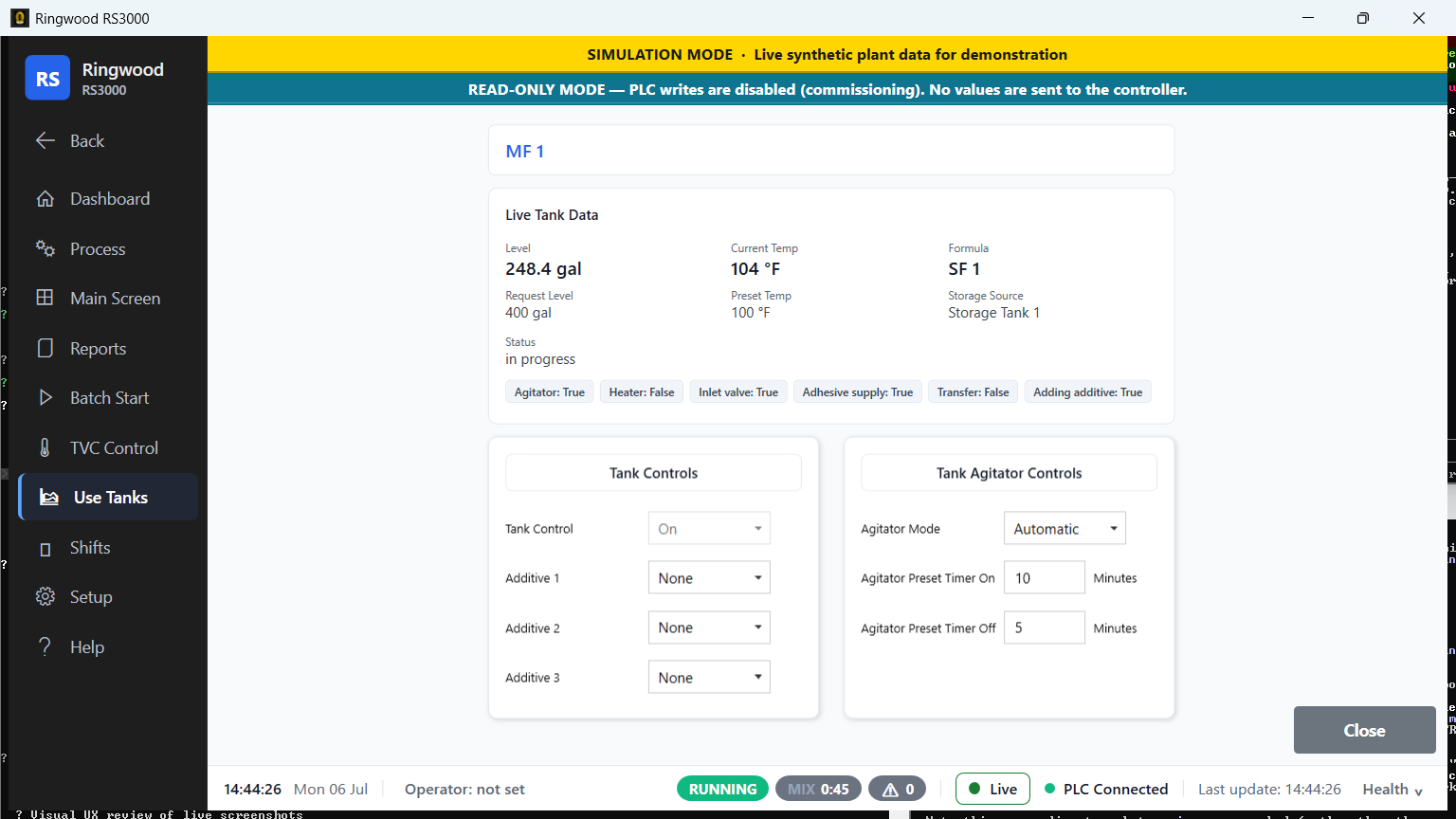
NavBar → Use Tanks currently offers one screen, MF 1 (two further slots, MF 2 and Double Backer, exist in the software but ship hidden at this plant).
Header: the tank's label, a per-slot data freshness chip (green LIVE / amber STALE / grey NO DATA — distinct from the global PLC banner, because a single field can drop out even while the overall link is fine).
Live Tank Data card: Level, Current Temperature, Formula (top row); Preset Temperature (second row); Status (third row); then a wrapping row of text-based activity chips: Agitator, Heater, Inlet Valve, Adhesive Supply, Transfer, and Adding Additive — each reading On/Off/—. If the slot has no roster configuration at all, a plain "slot empty" message replaces this whole card.
Note: Use tanks have no continuous level instrument on this plant (see 03a §Use Tank Group). This screen's Level field, and the Dashboard's use-tank tile fill-percent, are both read from the controller and shown anyway — treat them as indicative only, never as a measured level. Temperature and the device chips are the trustworthy values on a use tank.
Tank Controls and Tank Agitator Controls cards — two cards at the foot of the screen for setting additive selections (three additive slots, each a choice of None/WRA/WPA/a third named additive) and agitator behavior (Automatic/Manual/Off mode, plus preset on/off timer minutes).
Warning: These two control cards are completely hidden while Ring is in read-only mode — you will not see them at all until the plant's write-enabled cutover. Once writes are enabled, they appear and are real PLC writes: changing an additive selection or the agitator mode sends a command to the controller. A setpoint status line under the agitator controls shows "reading…" while Ring confirms the current values by reading them back from the controller, and a Retry button appears if that read-back fails — the controls stay locked until the read-back succeeds, so you are never editing against an unconfirmed baseline.
A separate, more tightly gated formula re-select control (choosing which
of formulas 1–6 this use tank draws from) exists inside the Tank Controls
card, but it ships hidden entirely — you will not see a formula control
on this screen at all, even after the two cards above become visible. It
appears only once the separate EnableUseTankFormulaWrite sign-off flag
has been turned on for this station, and even then it stays greyed out
(with a tooltip explaining why) unless read-only mode is also off and this
slot is mapped to a PLC tank index.
Process#
NavBar → Process is the line-control popup: Hold, Resume, Reset, and Alarms. Hold/Resume/Reset are covered in 02-running-batches.md §2.4; Alarms is covered in 04-alarms-and-attention.md.
Shifts#
NavBar → Shifts groups four screens.
Shifts Control#
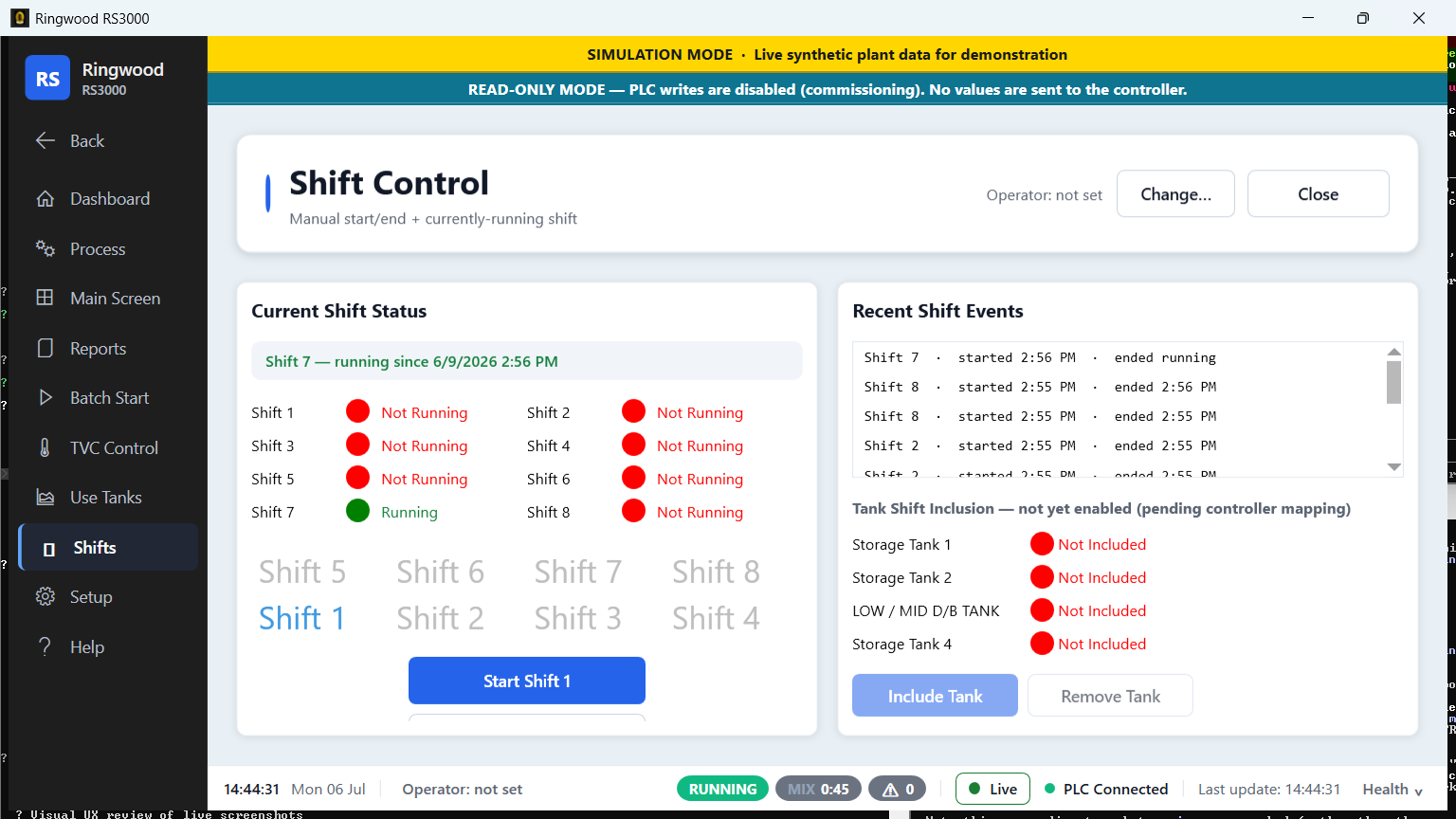
Purpose: manual shift start/end, for the unscheduled cases (early start, late finish, emergency shift change) — the controller also tracks shift boundaries automatically per the schedule in Setup, so this screen is the manual override, not the primary mechanism.
What you see:
- The current open shift banner (or "No shift open").
- An 8-shift status grid: Shift 1 through Shift 8 plus a 24-Hour row, each showing Running/Not Running in red or green text.
- A shift picker (radio buttons, one per slot) that selects which shift the Start/End buttons below act on — the Start button's own label follows your selection ("Start Shift 2", etc.).
- Start Shift N and End Shift buttons.
- An inline notice line for feedback ("No shift currently open", etc.).
- On the right, a Recent Shift Events list — a plain chronological log of start/end events, newest first, with an explicit empty state ("No events yet") when nothing has happened yet on this station.
Warning: Like the Use Tank control cards above, the shift picker and the Start Shift N / End Shift buttons are completely hidden until BOTH read-only mode is off AND the separate
PlcSettings.EnableShiftControlPlcWritessign-off flag is turned on for this station. That flag ships off and is not even present inappsettings.jsonby default, so it does not turn on at the 2026-09-08 write-enabled cutover either — it needs its own, separate sign-off. Until then, this screen is a read-only status board: the 8-shift grid and Recent Shift Events still work, but there is no button on it that starts or ends a shift.
Note: Once the buttons above are available, starting a new shift automatically ends whatever shift is currently open first — you do not need to End Shift yourself before Starting the next one (source: OPERATOR_TRAINING_RUNBOOK.md §8.2 in the Ring repository).
Handoff Notes#
Purpose: a free-text end-of-shift log for anything the next operator needs to know that does not fit a report.
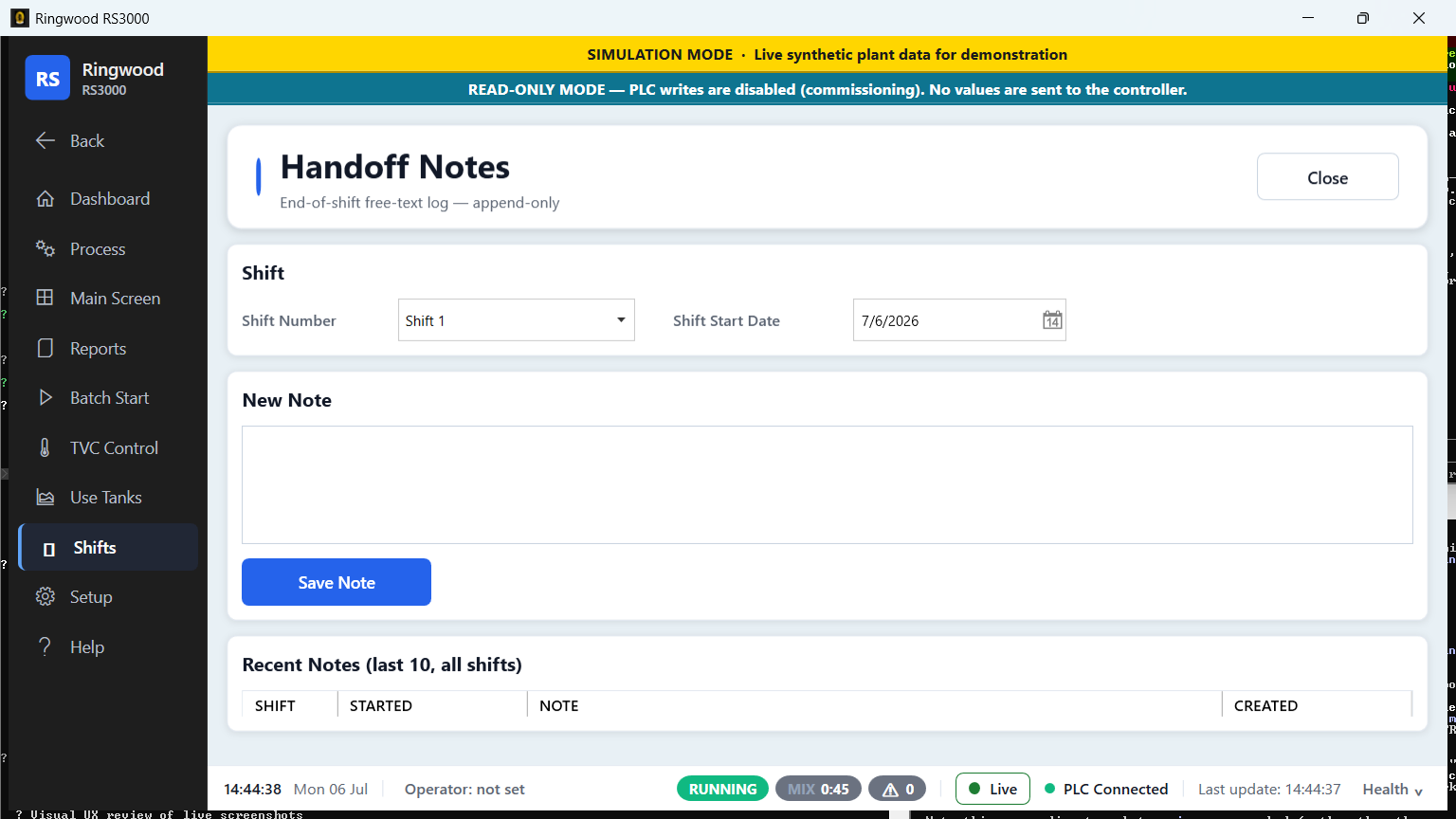
What you see: a Shift picker, a Shift Start Date picker, an Open Production Log button (jumps to the Production Log screen below), a multi-line note box, a Save Note button, and a Recent Notes grid (Shift, Started, Note preview with full text on hover, Created) with an empty-state message when nothing has been logged.
Shift Handover#
Purpose: a read-only, printable summary of one shift — meant to be read (or printed and handed over) at shift change, not edited.
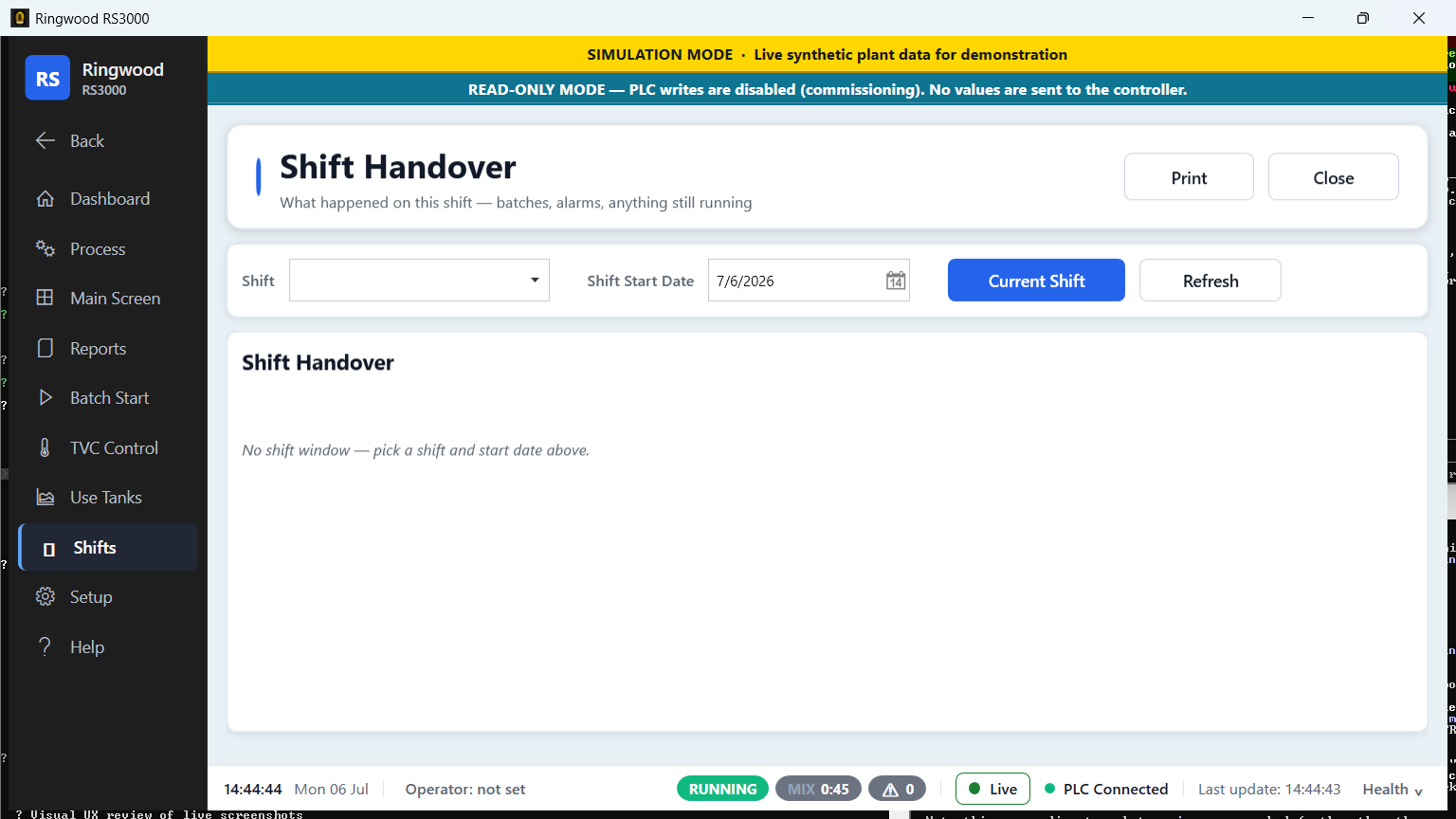
What you see: a Shift and Shift Start Date picker, a Current Shift jump button, and Print/Refresh buttons, followed by:
- A six-tile KPI strip: Batches Ran, Completed, Cancelled/Interrupted, Alarms Raised, Alarms Active, and Still Running.
- A Batches table (Batch, Tank, Formula, Started, Ended, Outcome).
- An Alarms table (Alarm, Type, Raised, Resolved, State) — the State column is color-coded: red for "still active," amber for "dropped from the PLC's queue without resolving" (the fault may still be live — this is deliberately not shown in the green "handled" color), and green for genuinely resolved. If the alarm list for a busy shift is capped, a footer line says so rather than silently truncating.
- A Still Running section listing anything open at handover time.
- The latest Handoff Note for this shift, if one was written.
An honest "no shift window" message replaces the whole summary if the selected shift is not configured or has no window to show.
Production Log#
Purpose: operator-entered produced square footage per shift — feeds the Dry lbs/sq ft coverage-rate report (see 06-reports-and-history.md).
What you see: an entry form (Shift, Date, Square Feet, Entered By), a Save button, a note that a later save for the same shift/date overwrites the earlier one ("last write wins"), and a History grid (Shift, Date, Square Feet, Source, Entered By, When) with Refresh. A pointer line at the bottom sends you to the Dry lbs/sq ft report for the actual coverage-rate calculation, rather than duplicating that math here.
Reports#
NavBar → Reports opens a large, grouped popup (Batch / Alarms / Inventory & Formula / Process & Trends / Data). Full depth — what each report answers, its filters, its columns, and how to read it — is 06-reports-and-history.md. Most reports follow the same on-screen pattern: pick filters on the left, Preview to render it, Print to send it to the LCP's printer — a handful (Insights, Trending, Tank/CIP Board, Batch Queue Board, Alarm Summary, and others) are interactive boards instead, with their own buttons and no Preview step; see 06-reports-and-history.md for which is which. The Database Export CSV tool also lives in this popup (Reports → Data), not under Setup — see 06-reports-and-history.md §Exporting data for the exact table and column list.
Setup#
NavBar → Setup is supervisor-gated — most items ask for the supervisor
password for this station (ask your shift supervisor; it is set per site at
commissioning and is not printed here), and a few ask for the admin
password (contact IT). Both tiers ship enabled, with a shared default
password out of the box (see the installer book's
commissioning guidance)
— installation is expected to change both to unique site values before
handoff. If Setup still accepts a shipped default password, or the old
legacy 9999 supervisor default, Ring raises a Startup Configuration
Warning at every boot — naming whichever of
Authentication.SupervisorPassword or Authentication.AdminPassword has
not yet been changed — see
01-getting-started.md §Startup warnings —
so a station that follows Ring's own commissioning guidance will never show
you that warning. A parallel list of Setup items exists inside the app at
Help → Operator Runbook §12 (source: OPERATOR_TRAINING_RUNBOOK.md in
the Ring repository), but it was written before roughly a dozen of the
items below shipped; this section, checked directly against NavBar.xaml,
is the current one. It covers the items an operator or shift supervisor is
most likely to actually open, in more depth than that table.
Password and Lock Setup#
Password opens a small dialog: pick Supervisor or Admin from a dropdown, type the password, OK. Lock Setup explicitly logs back out of elevated access without waiting for the idle-timeout auto-relock — use it if you unlock Setup and then need to walk away.
Setup Wizard#
Re-runs the same guided, step-by-step configuration flow a fresh station walks through once on first boot (see 01-getting-started.md §Starting the app). The steps, in order: Welcome, Language, Unit System, PLC Connection, Read-Only Safety, SMTP (email), Recipients, Seed Defaults, Branding, Plant Names, Shift, Finish.
Warning: The Read-Only Safety step in this wizard is one of the few places in the app that can flip
ReadOnlyModeitself, mid-session. Running the wizard is therefore not purely cosmetic — if you re-run it, pay attention to that step specifically. If it re-enables read-only mode, Ring's read-only banner reappears immediately without needing a restart.
Language#
Setup → Language — see 01-getting-started.md §Language. Applies immediately, no restart.
Formula Edit, Formula Exchange, Viscometer Settings#
Covered in full in 05-formulas-and-recipes.md.
Tank Roster#
Enables/disables and names each storage and doser slot. The screen itself carries a restart-required note for changes that need one — most name edits apply live, but roster membership changes (adding/removing a slot) typically require a Ring.exe restart, which the screen tells you at the point you make the change.
Unit Settings#
Setup → Unit Settings ("Display Units") sets independent dropdowns for Volume, Weight, and Temperature display units. The screen's own description is exact and worth repeating: "Temperatures, levels and weights are converted for display only. PLC values, batch math and stored history stay in native units." Changes apply immediately and are saved for this station — see 05-formulas-and-recipes.md §Units for why recipe amounts specifically stay in pounds regardless of this setting.
Shift Names and Spans#
Pick one of the nine shift slots (Shift 1–8, or the 24-Hour slot) from a dropdown to see its current name, start time and duration, and an Edit Selected Shift button to change them. This is what Shifts Control's 8-shift grid and picker are named and timed from.
Email Alerts, Alarm Escalation Settings, Alarm Playbook Editor#
Covered in 04-alarms-and-attention.md.
Data Entry and Data Entry Setup#
Setup → Data Entry opens the operator-facing hub of five free-form logging screens (measurements, shift notes — whatever this plant chooses to use them for), each with eleven fields. Setup → Data Entry Setup (supervisor-gated) is where those five screens and their fields are renamed for this plant. Submissions are timestamped and show up on Reports → Data Entry Report — see 06-reports-and-history.md §Inventory and formula reports.
Plant Profile#
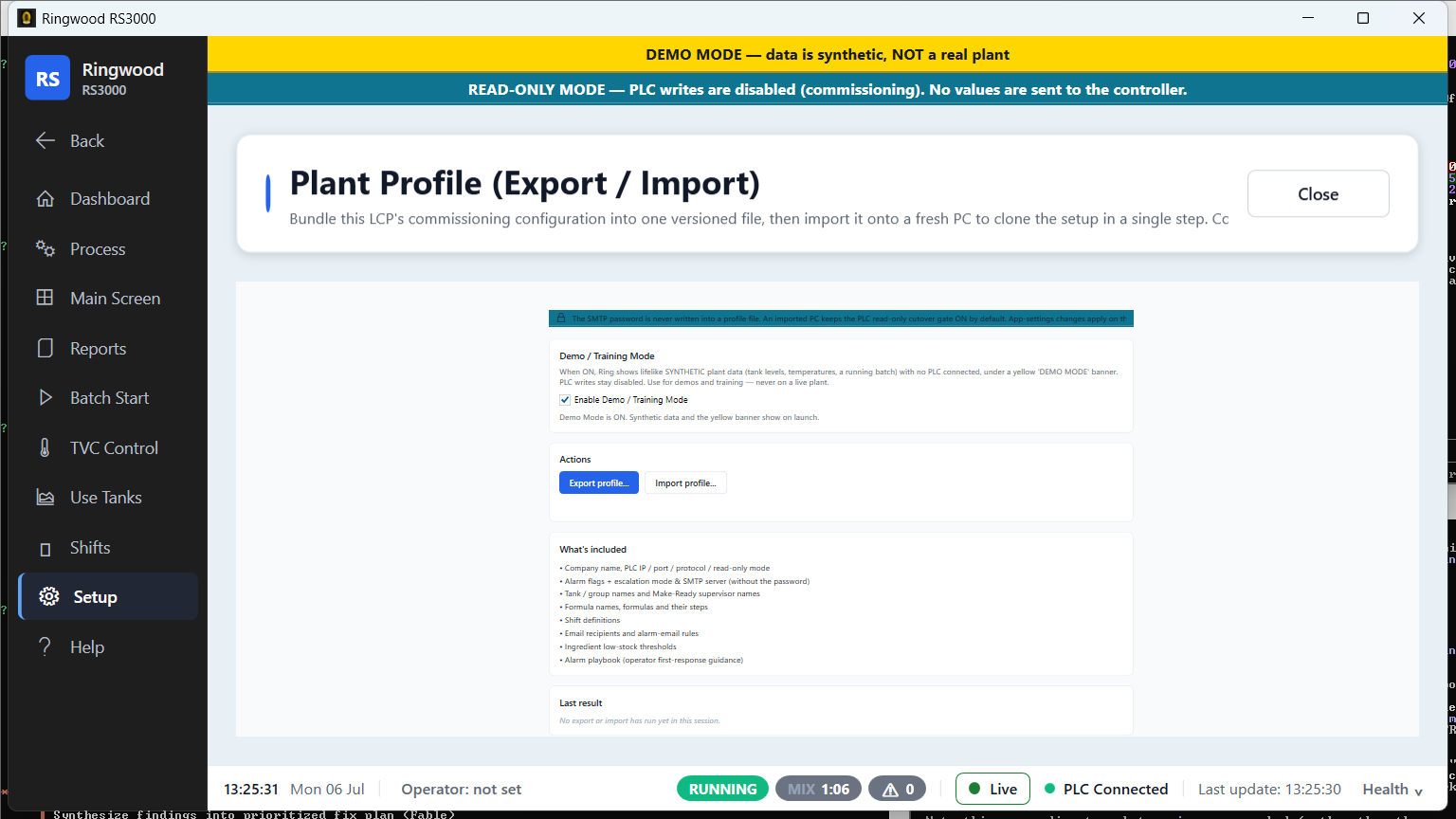
Carries the Enable Demo / Training Mode checkbox — see 01-getting-started.md §Demo mode banner for exactly what it does and why it needs a restart — plus Export and Import buttons for this station's plant profile file, used mainly by commissioning and IT rather than day-to-day operators.
Diagnostic Console, Database Backup/Restore, Factory Reset#
These three are almost entirely engineer/hypercare tools rather than day-to-day operator screens — the Installation Guide's when-something-goes-wrong chapter covers the Diagnostic Console and its one-click support bundle in depth, and 07-troubleshooting.md here covers what an operator should do before any of them are needed. One exception worth knowing about here: Database Backup/Restore also carries a supervisor-gated Data retention group — two fields, one for the process historian (trend history) and one for alarm history, each setting how many days Ring keeps that data before automatically trimming older rows. Both default to 365 days; entering 0 in either keeps those records forever. See 06-reports-and-history.md §How long report data is kept.
Help#
NavBar → Help opens:
- Operator Runbook — opens
OPERATOR_TRAINING_RUNBOOK.mdright inside the app. - RS-3000 Manual — the legacy
~RS360PDF manual, kept available for reference. - Manuals Library — a searchable, grouped list of every manual/PDF installed on the station; double-click an entry to open it.
- Documentation — a small chooser for the three customer-facing PDFs
(Operator Manual, Installation Guide, Engineering Reference). Each opens
straight from this PC (
Assets\Manuals\next toRing.exe) — no internet connection needed. If a PDF was not shipped on this installation, the chooser offers to openhttps://ring-rs3000.pages.dev/docs/instead. - Alarm Legend — see 04-alarms-and-attention.md §Alarm Legend.
- Keyboard Shortcuts — the same F1 overlay described in 01-getting-started.md.
- Contact Us — a phone number and service/orders email addresses for this plant, kept current by whoever administers the station's branding.
Sources verified#
Ring/Views/UseTanks/MF1Window.xaml,MF1Window.xaml.cs(FormulaEditSection.Visibilityfollows the master gate only, :338-345)Ring/Views/UseTanks/UseTankSetpointSeedPlan.cs(WriteControlEnabled, gating logic)Ring/Views/Shifts/ShiftControl.xaml,ShiftControl.xaml.cs(:53-57,IsWriteAffordanceEnabled)Ring/Services/PLC/ShiftControlPlcService.cs(:152-153)Ring/Infrastructure/Configuration/AppSettings.cs(EnableShiftControlPlcWritesdefaultfalse, :441;EnableUseTankFormulaWritedefaultfalse, :466-476;SupervisorPassword/AdminPasswordboth default"ringwood", :570/:580)Ring/Infrastructure/Configuration/ConfigurationValidator.cs(ShippedDefaultPassword, :116-195 — per-tier shipped-default and legacy-9999startup warnings)Ring/Views/PasswordDialog.xaml.cs(GetSupervisorPassword/GetAdminPassword, both defaulting to"ringwood")Ring/Views/Shifts/ShiftHandoffScreen.xamlRing/Views/Shifts/ShiftHandoverScreen.xamlRing/Views/Shifts/ShiftProductionLogScreen.xamlRing/Views/UserControls/NavBar.xaml(allButtonssupervisor-tier list,DataEntryButton/DataEntrySetupButton/PlantProfileButton)Ring/Views/Setup/UnitSettingsScreen.xamlRing/Views/Setup/ShiftNamesAndSpansScreen.xamlRing/Views/Setup/PlantProfileScreen.xaml,PlantProfileScreen.xaml.csRing/Views/Setup/DatabaseBackupDialog.xaml,.xaml.cs(RetentionHeadergroup, :117-177; supervisor/admin gate, :129)Ring/Infrastructure/Configuration/DataRetentionConfigWriter.cs(both fields default 365, 0 = keep forever)Ring/Views/MainScreen/UseTankGroup.xaml(:172, "use tanks have no continuous level")Ring/Views/PasswordDialog.xamlRing/Views/Wizard/StartupWizardSteps.csRing/Views/Help/ManualsLibraryScreen.xaml,ContactUs.xamlRing/Views/Help/DocumentationChooserDialog.xaml,DocumentationCatalog.csRing/Resources/Strings/Strings.en.xaml(S.Scr.UnitSettings.*,S.Scr.ShiftNames.*,S.Scr.NavBar.DataEntry*)- OPERATOR_TRAINING_RUNBOOK.md §8.2, §12 (referenced, not link-quoted — see Help above for how to open it in the app)