7. Remote viewing: installing Ring Remote View#
Authority for this chapter: docs/production-readiness/REMOTE_ACCESS_RUNBOOK.md
and remote-view/README.md, cross-checked against the installer scripts
themselves. Where the two disagree with a 2026-09-04 bench verification pass,
this chapter follows the bench pass and says so — see
Status and what is still owed at the end.
What it is and what it is not#
Ring Remote View is a separate, optional package. It is not part of Ring, and it is not a second copy of Ring.
What it actually does: it lets someone on the plant or office LAN open a
browser, log in, and watch — or, for a small named list of accounts, drive —
the one Ring session already running on the HMI PC. It mirrors that one
screen. It does not start a second Ring process, does not open a
second connection to the controller, and no Ring file — no .cs, no
.csproj, no appsettings*.json, no build output — is ever read or written
by anything in this package. Installing or removing Ring Remote View cannot
change how Ring behaves. If you uninstall it later, Ring itself never
notices.
Every time someone tries to connect, the operator standing at the panel sees a consent prompt naming who is asking, with Allow and Deny buttons. Nobody watches or drives silently. If nobody answers the prompt, it is refused automatically — an unattended panel denies the connection by design, it does not quietly let it through. Every desktop session that does go ahead is recorded to disk on the HMI PC as evidence, not just logged as an event.
What operators themselves see and are expected to do when a consent prompt appears is covered from their side, not the installer's, in the operator manual — see operator manual, 10. Remote viewing.
This chapter installs the LAN-only version: reachable only from inside the plant's own network, with no exposure to the internet at all. Getting an engineer connected from home, or a vendor connected from off-site, is a second, separate, additive install covered in chapter 7a, Remote viewing off-site — do not run anything from that chapter until this one is fully installed and verified.
Decide before you start#
This is a new inbound network surface on a live plant PC, even though it is scoped tightly. Three sign-offs are required before you run anything below — get them in writing, not just a nod on the floor:
- Plant POC — blesses a new inbound surface on the HMI PC, and
confirms the office LAN range you'll use for
-LanCidr. - Controls engineer — confirms that console mirroring, with an operator consent prompt, during live batching is acceptable, and agrees the "who's driving" etiquette with the shift teams (see Give people access below for the rights model that etiquette relies on).
- IT / security — accepts a self-signed certificate on the LAN (or supplies a real one afterward), and accepts the antivirus allow-list step below.
Survey the machine#
Walk the HMI PC through this table before you copy anything to it:
| Item | What you need | Why it matters |
|---|---|---|
| Hostname | Resolvable on the office LAN; no @, / or : characters |
The self-signed certificate's name is built from this hostname (see Right after install) |
| Windows version | Windows 10 1803 or later, or Windows 11 — x64 only | The package ships a win-x64 Node and MeshCentral agent only |
Free disk on C: |
At least 2 GB free | The payload is roughly 108 MB zipped and unpacks to roughly 394 MB on disk, plus room for recordings |
| Office LAN IPv4 + CIDR | e.g. 192.168.10.0/24 |
This is the -LanCidr value below |
| Plant/PLC NIC | A different physical NIC from the office LAN, if this PC has one | See Firewall and network category — a dual-homed PC needs extra parameters |
| Office NIC network category | Domain or Private — never Public | A Public-classified NIC makes the firewall rule silently inert; see Firewall and network category |
| AV / EDR product + version | Recorded, and IT notified in advance | See the allow-list note below |
| Windows Firewall managed by GPO? | Yes / no | If yes, the domain admin adds the rule, not you |
| Local admin account | Available | The installer requires an elevated session throughout |
| PowerShell version | 5.1 (the target) | Every script here is 5.1-compatible; pwsh is not required, and was not exercised in any bench pass reviewed here |
The antivirus allow-list step#
MeshCentral's own agent binaries are commonly flagged by antivirus and EDR products as remote-management ("RMM") tooling. That is an accurate description of what the software is, not a false positive to argue with — raise it with IT before install day, as its own sign-off item, rather than debugging a quarantined agent on the floor afterward.
On a Windows Defender machine, the observed detection family is
HackTool:Win32/Meshagent — seen quarantining the packaging machine's
MeshService64.exe, MeshCmd64.exe and MeshCentralAssistant.exe while the
payload was being built. The same family of binary was already quarantined on the install target
too, ahead of the 2026-09-04 bench pass — Defender's detection history
there showed the staged agent binary (MeshService.exe, under
C:\Program Files\Mesh Agent\) quarantined on 2026-08-20 as RMM tooling.
Without an exclusion for that folder, the 2026-09-04 install would have
failed on it; the exclusion was added before the install ran. Ask IT for
an exclusion covering C:\Ring\RemoteView\ and C:\Program Files\Mesh Agent\ ahead of time.
Do not install if#
- The cutover is mid-flight and the plant POC has not signed off above.
- The HMI PC cannot be rebooted or serviced in the coming maintenance window — the install itself needs a few minutes of exclusive access and restarts a Windows service.
- You are installing at an actual customer site and haven't checked the current state of the outstanding items in Status and what is still owed — the full penetration test this package's own runbook treats as a hard gate is not yet complete end to end.
Get the package#
Get the package one of these three ways.
Option A — download it from this site. The password-protected download
page of this documentation site (the /download page, the same one that
carries the Ring release) has a section named "Ring Remote View (optional
companion)" with the zip's size and SHA-256. Ask whoever gave you the Ring
release password; it is the same password. The zip contains the
remote-view\ folder with every script, config-template.json, the
licences, the built payload (remote-view\dist\RingRemoteView-payload.zip
with manifest.json and payload-inventory.json beside it), and the three
remote-access runbooks under docs\. You do not need Node.js or internet
access on the HMI PC; everything the server needs is inside that zip.
The zip is about 109 MB, so use the same part-wise downloader the Ring release uses (see chapter 2a), pointed at this package. It signs in, fetches six verified parts, joins them and checks the final hash, and it is safe to re-run if a part fails:
Invoke-WebRequest https://ring-rs3000.pages.dev/get-ring.ps1 -OutFile get-ring.ps1
powershell -ExecutionPolicy Bypass -File .\get-ring.ps1 -Manifest remoteview.json -Destination C:\RingDownload
The page also has a one-click "Download Ring-RemoteView-20260904.zip" link that streams the same parts as one file. On a slow link that stream can stop early without an error, so if you use it, check the hash against the page before you copy anything to the HMI PC, and fall back to the script if it does not match:
Get-FileHash .\Ring-RemoteView-20260904.zip -Algorithm SHA256
Option B — get it from engineering. The package lives as the
remote-view/ folder inside the merged_code repository (see engineering
manual, 9.5 Remote access).
Ask engineering for a copy of that folder, already built — that is, including
dist\RingRemoteView-payload.zip and dist\manifest.json.
Option C — build it yourself, on any dev box with PowerShell, Node.js
and npm on PATH, and internet access to registry.npmjs.org and
nodejs.org:
cd merged_code\remote-view

# Prove the fetch logic first - resolves versions and HEAD-probes the
# download URLs, downloads nothing.
.\Build-RemoteViewPackage.ps1 -ProbeOnly

# Real build (roughly 480 MB fetched, pruned down, then zipped).
.\Build-RemoteViewPackage.ps1
-ProbeOnly resolves the newest active Node LTS line and confirms
MeshCentral's pinned version and the download URLs all answer, without
pulling anything — a quick way to prove the packaging machine can actually
reach what it needs before committing to the full download. The real build
downloads a portable Node LTS runtime and MeshCentral 1.2.4, installs the
extra startup modules MeshCentral needs on Windows, prunes the agent
binaries down to Windows x64 only, and writes dist\manifest.json (the
software bill of materials — hand this to a customer's AV/EDR team
alongside the allow-list request above) and dist\RingRemoteView-payload.zip.
The result is roughly 394 MB staged, zipping to roughly 108 MB; both the
exact sizes and every file's SHA-256 are recorded in dist\manifest.json,
not repeated here. If the packaging machine's own antivirus quarantines a
required agent binary mid-build, the build fails loudly rather than
shipping a payload that can't start — add a Defender exclusion for the
build's output directory and rebuild.
Either way, copy the whole remote-view\ folder to the HMI PC,
including dist\RingRemoteView-payload.zip **and** dist\manifest.json
sitting next to it — the installer verifies the archive's checksum against
that manifest before it unpacks a single file, and without it that check
degrades to a warning instead of a hard stop.
Install#
From an elevated PowerShell session on the HMI PC, in the folder you copied:
.\Install-RemoteView.ps1 `
    -AdminUser ringadmin `
    -LanCidr 192.168.10.0/24 `
    -Operators @(
        @{ User = 'jbaker';    ViewOnly = $false },   # may drive
        @{ User = 'shiftlead'; ViewOnly = $true  }    # watch only
    )
-AdminUser is the site administrator — this account stays with plant
management and is never handed to an operator (see
Give people access for why). Each entry in -Operators is one
person's account; ViewOnly = $false means that account can drive the
console, ViewOnly = $true (the default if you omit the key) means
watch-only. Every parameter is described in full below — for the exact
numeric rights masks and every other pinned constant behind these flags, see
reference, 9. Remote View reference.
Every installer parameter#
| Parameter | Default | What it does |
|---|---|---|
-AdminUser |
ringadmin |
Site administrator account id. Stays with plant management, never handed to operators. |
-AdminPassword |
(none) | SecureString. Omit this and -AdminPasswordFile and a 20-character password is generated and printed once. |
-AdminPasswordFile |
(none) | Path to a UTF-8 file whose first line is the admin password. Read into memory and the file is deleted immediately, so the password never sits on a command line or in a setup log. |
-LanCidr |
auto-detected /24 |
The allowed LAN range, e.g. 192.168.10.0/24. Required together with -InterfaceAlias on a multi-homed machine — the installer refuses to guess. |
-InterfaceAlias |
(none) | The office/LAN NIC name the firewall rule binds to. Required together with -LanCidr on a dual-homed HMI PC, so the rule can never land on the plant/PLC NIC. |
-HttpsPort |
8443 |
Pinned. Change only for a real, documented reason — the firewall rule name and every shortcut are built from this value. |
-Operators |
@() |
Array of hashtables: @{User='jbaker'; Pass='...'; ViewOnly=$true}. ViewOnly=$true = watch only; $false = may drive — see reference, 9. Remote View reference for the exact rights masks. |
-OperatorSpec |
(none) | Flat alternative to -Operators: "jbaker:control,shiftlead:view". Written for the Inno Setup GUI wrapper — which has never actually been compiled; see Status. |
-PayloadZip |
<script dir>\dist\RingRemoteView-payload.zip |
The built payload archive. |
-PayloadDir |
(none) | Alternative to -PayloadZip: an already-expanded payload folder. |
-InstallRoot |
C:\Ring\RemoteView |
Pinned install location. |
-NoFirewall |
off | Skip creating the inbound firewall rule. Staging/lab installs only — a normal plant install needs the rule. |
-NoAgent |
off | Skip installing the local Mesh Agent service. Server-only staging installs only. |
-Reinstall |
off | Adopt-and-replace an existing service pair instead of aborting. See below for exactly what this resets. |
-TempExpandRoot |
$env:TEMP |
Where the payload is expanded before it's copied in. Only needs changing if %TEMP% is so deep a path would exceed MAX_PATH — the installer checks this itself and tells you if so. |
-VerifyPayloadHashes |
off | Additionally re-hashes every extracted file against the build's file inventory. Off by default — it costs several minutes on an HMI laptop with on-access antivirus scanning every file. |
-HealthTimeoutSeconds |
180 |
How long to wait for the server to answer on https://127.0.0.1:<port> before giving up. |
What it does, in order#
- Stages the payload and proves it is complete (see below) before copying a single file into the install root.
- Confirms the runtime modules MeshCentral needs at startup are present.
- Renders
config.jsonfromconfig-template.json— including a lowercase, dotted certificate name and an explicit list of allowed browser origins built from this machine (see Right after install for why both of those matter). - Creates the site administrator account offline, then reads the account database back to confirm it actually holds full site-admin rights.
- Installs and starts the MeshCentral Windows service, which
generates the self-signed certificate itself on first start, then polls
https://127.0.0.1:<port>/until the server answers healthy. - Provisions the Plant HMI device group and every operator account, and reads each one's rights mask back from the server to confirm it landed exactly as intended.
- Installs the local Mesh Agent service, background-only — there is no interactive "connect" button on the HMI PC itself, only the consent prompt described above.
- Adds the inbound firewall rule (unless
-NoFirewall), scoped as described in Firewall and network category. - Creates the Start Menu and desktop shortcuts, then prints the summary below.
What you will see#
The install prints a running commentary, then a summary block. These lines are excerpted from a real bench install — your own hostname, IP and passwords will differ:
Administrator account confirmed as site administrator (siteadmin=4294967295).
Server is healthy.
Server certificate present: subject=CN=laptop-t8d4hur8.local (self-signed, generated on first start).
Certificate name : laptop-t8d4hur8.local   (settings.cert; must contain a dot or MeshCentral offers no two-factor login)
allowedOrigin    : laptop-t8d4hur8, laptop-t8d4hur8.local, localhost, 127.0.0.1, 192.168.1.206
...
PROVISIONING OK

  New operator credentials (shown ONCE - hand them over in person, do not email):
    jbaker              <20-character password>   (one-time; must be changed at first login)
    shiftlead           <20-character password>   (one-time; must be changed at first login)

  Every account must enrol an authenticator app at first login (domain force2factor is on).
...
INSTALL OK

  URL              : https://laptop-t8d4hur8:8443/
  Install root     : C:\Ring\RemoteView
  Services         : "MeshCentral" (server), "Mesh Agent" (local agent)
  Firewall         : TCP 8443 inbound, LocalSubnet, ALL interfaces - no interface filter was applied (no -InterfaceAlias given).
  WARNING          : the chosen NIC is classified Public. The rule profile is Domain,Private, so it will NOT apply until the NIC is re-classified Private/Domain.
  Device group     : "Plant HMI" (features 4 = record sessions, consent 9 = notify + prompt)
  Admin account    : ringadmin

  ADMIN PASSWORD (shown once, store it with plant management, do NOT give it to operators):
    <20-character password>
The WARNING line about a Public-classified NIC only appears when it
applies — see Firewall and network category for what it means
and how to fix it before you assume the install failed. Both the admin
password and every operator's one-time password are printed exactly once,
to the console — nowhere else. Write them down or capture the console
output now; there is no "show me that again" later.
Expected duration. On the bench laptop a full install took a little under three and a half minutes end to end (measured at 175 and 203 seconds across two runs, on an NVMe drive with an antivirus exclusion already in place). Expect longer on an HMI PC where on-access antivirus is actively scanning the roughly 394 MB payload as it's copied — do not assume a stall after five minutes is necessarily a hang; check Task Manager for disk activity before killing it.
Payload verification, in short. The archive is never unpacked with
Expand-Archive — on Windows PowerShell 5.1 that command can silently drop
files from a payload this size with no error and exit code 0, so the
installer reads the zip entry by entry instead and checks the result
several separate ways: the whole archive's SHA-256 against manifest.json,
every entry's path and exact byte length against the archive's own central
directory, every entry again against manifest.json's payload inventory,
and the install root itself re-checked after everything is copied. Any
shortfall stops the install before it copies anything, and
names exactly which files are missing rather than leaving a silently
incomplete server running.
Rollback, in short. If any step after that fails, the installer undoes
only what this run created — the install root, the config file, both
services, the firewall rule, the shortcuts, and (only when it created a
fresh account database) the accounts — and leaves anything already on the
machine untouched. If an item can't be removed it prints
ROLLBACK INCOMPLETE and names exactly what is still on disk, rather
than reporting a clean rollback it didn't actually achieve.
-Reinstall: what it resets#
Re-running the installer against a machine that already has a "MeshCentral"
or "Mesh Agent" service on it aborts by default — pass -Reinstall to stop
and remove the existing service pair first instead. If this HMI PC still has
its previous meshcentral-data folder, that folder — and the account
database inside it — is preserved, not recreated, with one exception:
the site administrator's password is reset to match whatever this run's
-AdminPassword (or a freshly generated one) is, and that reset clears the
administrator's two-factor enrolment along with it, so the admin has to
enrol an authenticator again at the next login. Existing operator accounts
in that same database keep their own passwords and 2FA enrolment untouched;
only their rights mask is re-asserted against the values you passed.
Right after install#
Do these six things before you consider the install finished, in this order.
Browse to
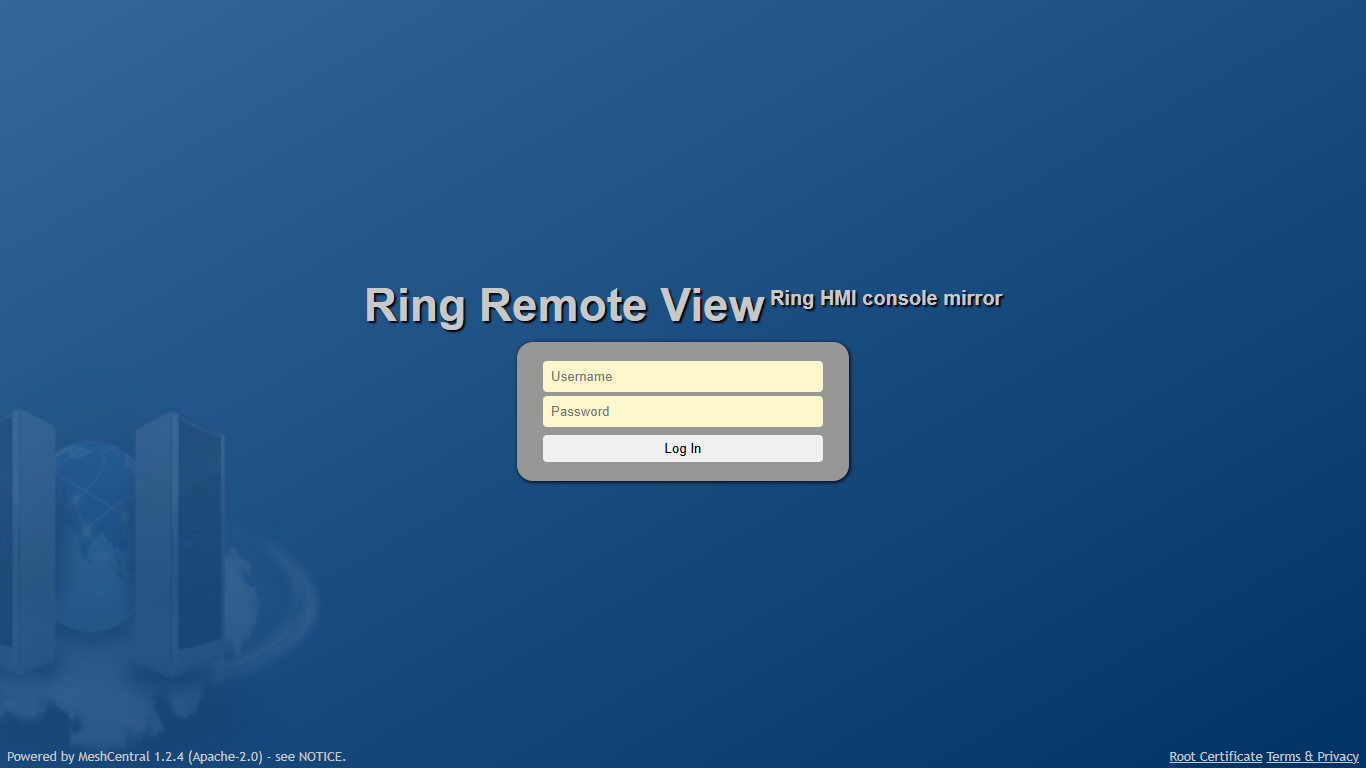
https://<hostname>:8443/— by hostname, not by IP address, and notlocalhost. For examplehttps://ring-hmi-01:8443/for a PC namedRING-HMI-01. This matters more than it looks: MeshCentral checks the browser's Origin header against an allow-list built from this machine's own name, and if you type an address that isn't on that list the page loads past login and then shows only "Invalid origin in HTTP request, click to reconnect." with nothing else on the page. This package's certificate name and allow-list are built so the bare hostname, the certificate name, the LAN IPv4 address,localhostand127.0.0.1all work — anything else does not (see When something goes wrong if you hit this anyway). Trust the self-signed certificate once, the first time each browser connects — there is no plant PKI behind it, so this warning is expected, not a fault.Log in as the administrator, using the one-time password from the
INSTALL OKsummary. The first login forces a password change before anything else loads: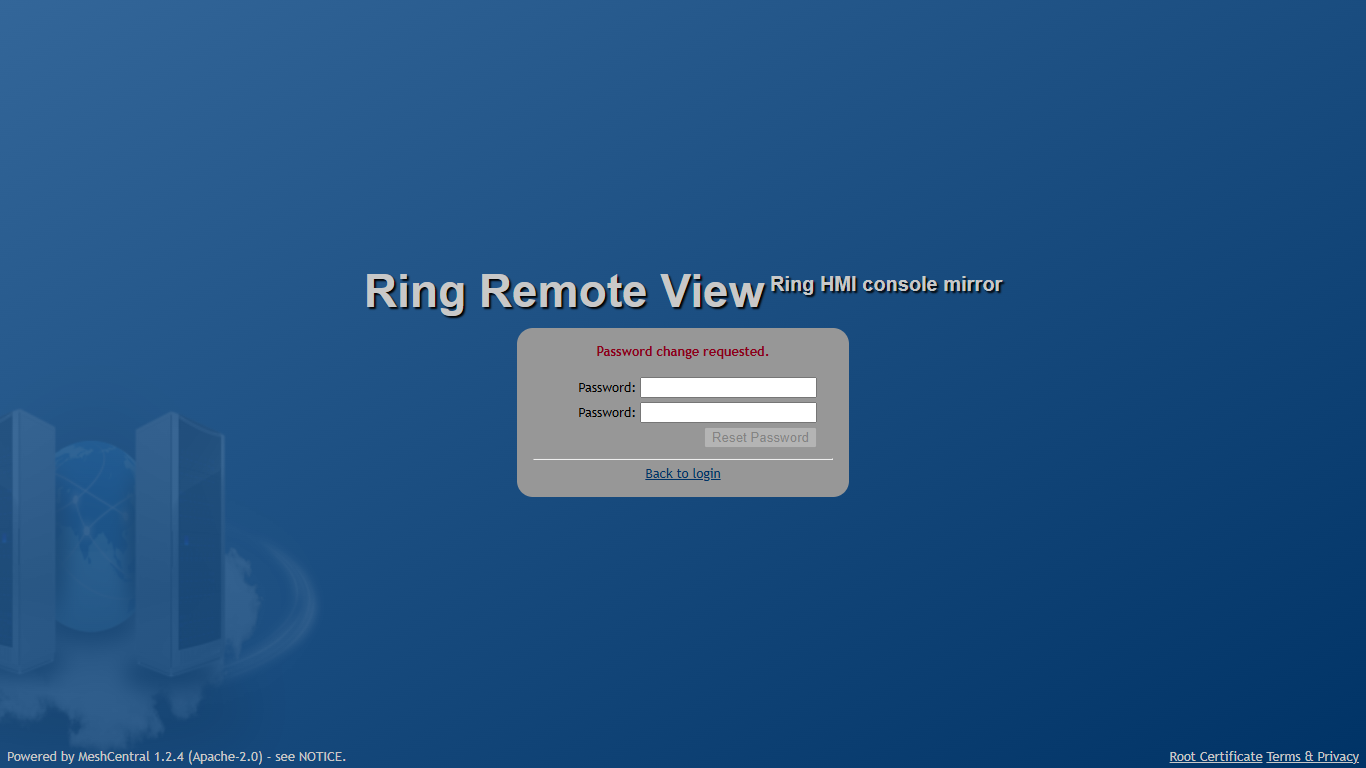
First login: the one-time password must be changed. Enrol an authenticator app immediately — every account, including the admin, must, because
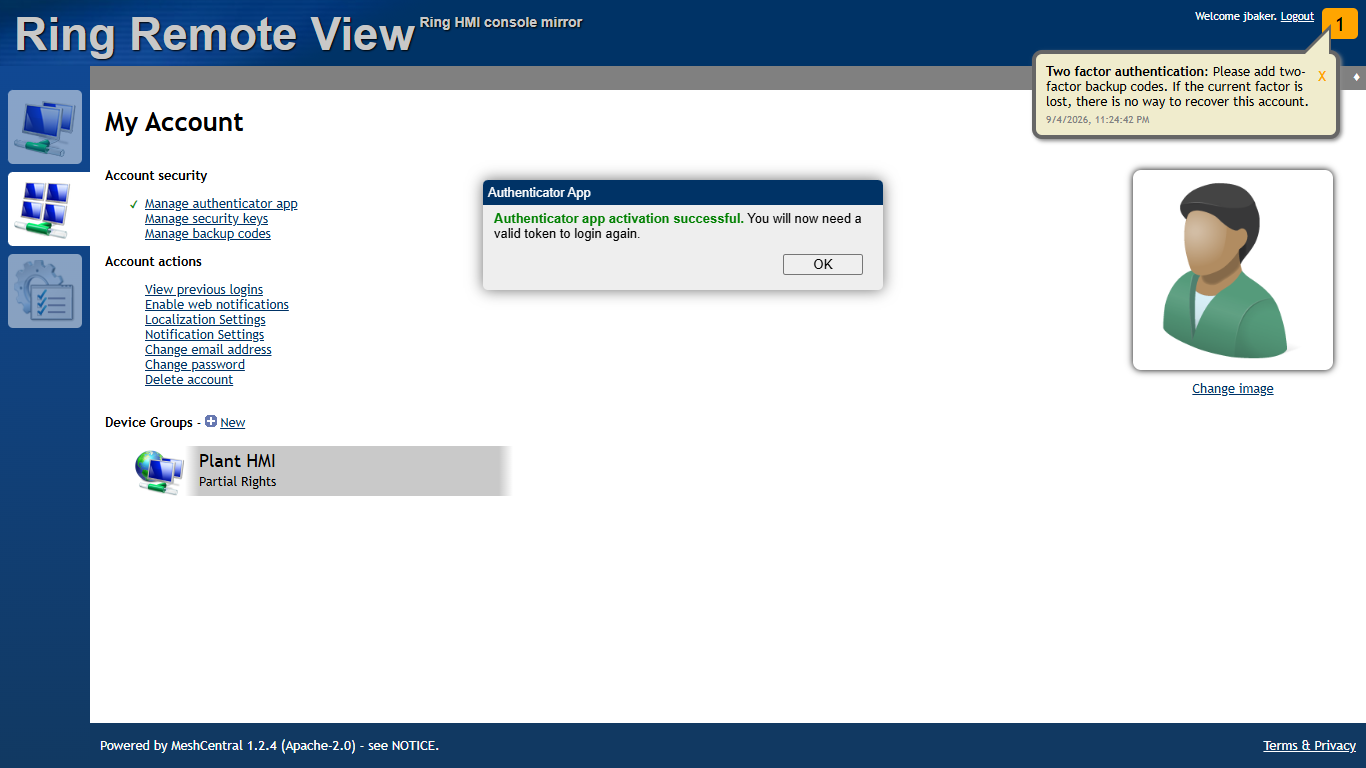
force2factoris on domain-wide. Go to My Account → Account security → Manage authenticator app, scan the QR code (or type the secret by hand) into an authenticator app, then enter the current 6-digit code it shows to activate it: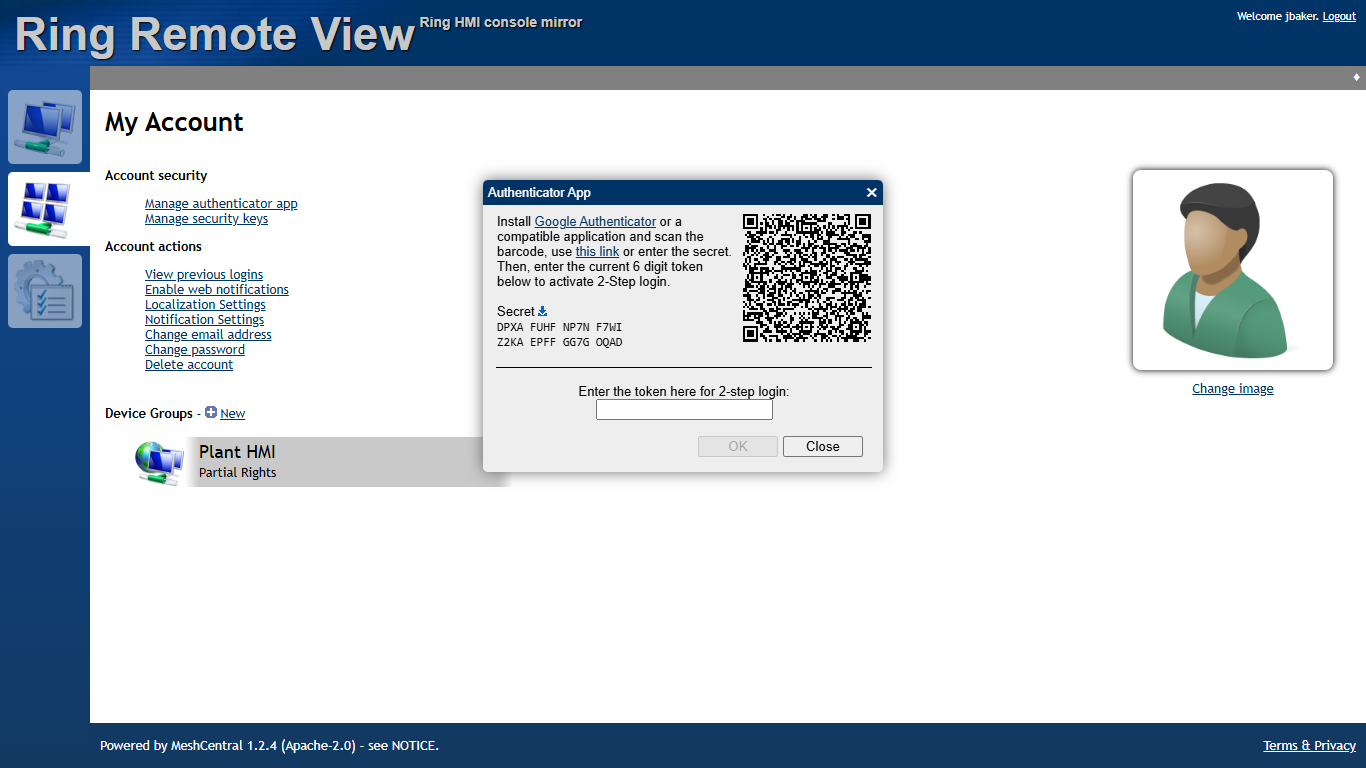
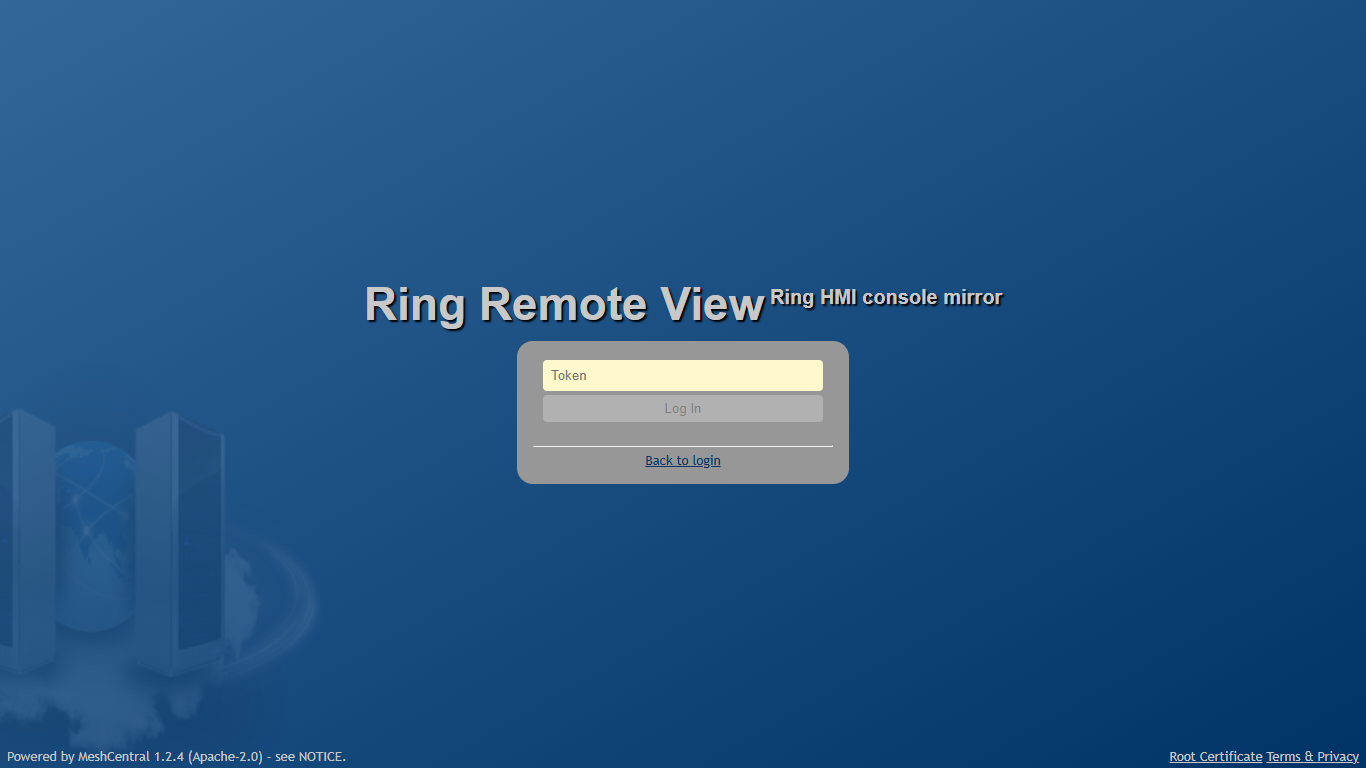
My Account, Account security, Manage authenticator app: scan the code or type the secret, then enter the current 6-digit token. Do this before you click anything else in the interface. Every device click is blocked with the message "Unable to access this feature until two-factor authentication is enabled. This is required for extra security. Go to the 'My Account' tab and look at the 'Account Security' section." until enrolment is done — enrolling first avoids running into that message at all. Every login after this one asks for a fresh 6-digit code on a second page, not just the password:
Every later login asks for the 6-digit code from the authenticator app. Confirm the HMI PC shows up and is connected. Open My Devices and confirm the machine appears in the Plant HMI group — on the bench it showed the status "Agent, Powered":
My Devices: the HMI PC in the Plant HMI group. Hand each operator their one-time password in person. Never by email, never by chat — the same rule the runbook applies to the admin password applies here. Each one must change it and enrol their own authenticator at their own first login, exactly as you just did.
The go-live gate. Before remote access is announced to the shift, open My Users in the web UI and confirm every provisioned account — the administrator and every operator — has actually completed authenticator enrolment, not just changed its password. Record this by name and date in the cutover packet. Do not tell anyone remote access is ready, and do not consider this install finished, while any provisioned account still shows no authenticator enrolled — a password-only account is real, working access with the second factor missing, not a harmless loose end.
Firewall and network category#
The installer creates one inbound rule automatically, as the last step
before it prints INSTALL OK:
| Port | Direction | Protocol | Scope | Rule name | Why |
|---|---|---|---|---|---|
| 8443 | Inbound | TCP | LocalSubnet |
Ring Remote View (HTTPS 8443) |
The web UI — the only inbound surface this package adds |
| 4433 | — | TCP | not listening (no socket on any interface) | no rule at all | See below |
| Plant/PLC NIC | Inbound | any | — | nothing | Must gain no inbound surface whatsoever |
Why nothing for 4433. 4433 is MeshCentral's Intel AMT management port;
the config pins it and would bind it to 127.0.0.1. But in the LAN-only mode this package ships in,
MeshCentral's own mpsserver.js never even starts that listener (it checks
(args.lanonly != true) && (args.mpsport !== 0) before opening it) —
confirmed on a bench install, where the machine had no socket bound to 4433
at all, on any interface. There is nothing there to firewall.
The Public-profile trap. The rule is created with Profile = Domain,Private on purpose — Windows only applies a rule on interfaces
whose current network category matches, so if the office NIC is
classified Public, the rule silently does nothing and 8443 is
unreachable, with no error anywhere. This is exactly what the WARNING
line in the install summary is telling you about if it appears.
Fix the classification, don't work around it:
Get-NetConnectionProfile -InterfaceAlias 'Office LAN'
Set-NetConnectionProfile -InterfaceAlias 'Office LAN' -NetworkCategory Private
The rule is never created with Profile = Public or Any — a remote-access
surface must not be advertised on an untrusted network, so re-classifying
the NIC is the only fix, not loosening the rule's profile.
Dual-homed HMI PCs. If this machine has a second NIC on the plant/PLC
network, LocalSubnet scoping alone is not enough — it would expose 8443
on that network too if the plant subnet is also "local" to Windows. That is
exactly why -LanCidr and -InterfaceAlias are both required together on a
multi-homed box (see the parameter table above); the installer
binds the rule to that one NIC and then re-reads it back to confirm the
binding took. Verify it yourself any time with:
Get-NetFirewallRule -DisplayName 'Ring Remote View (HTTPS 8443)' | Get-NetFirewallInterfaceFilter
To fix or remove the rule later without a full reinstall, the same script the installer calls is also there to run by hand:
.\New-RemoteViewFirewallRule.ps1                              # default 8443, LocalSubnet
.\New-RemoteViewFirewallRule.ps1 -InterfaceAlias 'Office LAN' # bind to one NIC
.\New-RemoteViewFirewallRule.ps1 -Remove                      # remove it
A rule you did not ask for. The Mesh Agent's own installer creates a
second inbound rule by itself, named "Mesh Agent WebRTC Traffic" — UDP,
any local port, any remote port, scoped to the agent's own executable
(C:\Program Files\Mesh Agent\MeshAgent.exe), and — unlike the rule above —
on all three firewall profiles, including Public. This package's config
has webRTC: false, so the rule is unused, but it exists on disk and a
security reviewer will find it. Either disable it or accept it explicitly as
a documented exception:
Disable-NetFirewallRule -DisplayName 'Mesh Agent WebRTC Traffic'
Uninstalling Ring Remote View removes this rule too, as a side effect of the Mesh Agent's own uninstall — see Uninstall.
Give people access#
To add another operator later, without touching anything else on the machine, run the provisioning script by itself from the install folder:
cd C:\Ring\RemoteView
.\Provision-RemoteView.ps1 `
    -AdminUser ringadmin `
    -AdminPassword (Read-Host 'admin password' -AsSecureString) `
    -Operators @(@{ User = 'nightshift'; ViewOnly = $true })
View-only is the default. Grant ViewOnly = $false (control) per named
person, deliberately, and record who and why — not as a default setting for
a group. This is idempotent: running it again for someone who already has
an account leaves their password alone and simply re-asserts their rights
mask, and a newly created account's one-time password is printed once, the
same as during install — hand it over in person, never by email. The new
person still has to change that password and enrol their own authenticator
at first login. For the exact numeric rights masks and every other pinned
constant this package uses, see
reference, 9. Remote View reference.
To remove someone, use the web UI: My Users → select the account →
Delete. Or, to disable someone's access without deleting their login,
remove only their grant on the Plant HMI device group instead. Either
way, deleting the account does not delete their past session
recordings — that's intentional. Recordings are evidence, and stay in
meshcentral-recordings\ regardless of what happens to the account that
made them.
Check your work#
Browse from another office PC (not the HMI PC itself) to
https://<hostname>:8443/and confirm the login page loads and the certificate warning is the expected self-signed one.Log in as the administrator and confirm the 2FA prompt appears on every login after the first — not just once at setup.
Confirm the HMI PC shows as connected in My Devices, group Plant HMI — on the bench the device list showed the status "Agent, Powered".
Connect as an operator account and confirm the consent prompt appears at the panel — the person there should see a dialog naming who is asking, with Allow and Deny buttons. This was observed directly on the bench: connecting and never answering the prompt left the browser's Desktop tab reading "Waiting for user to grant access...",
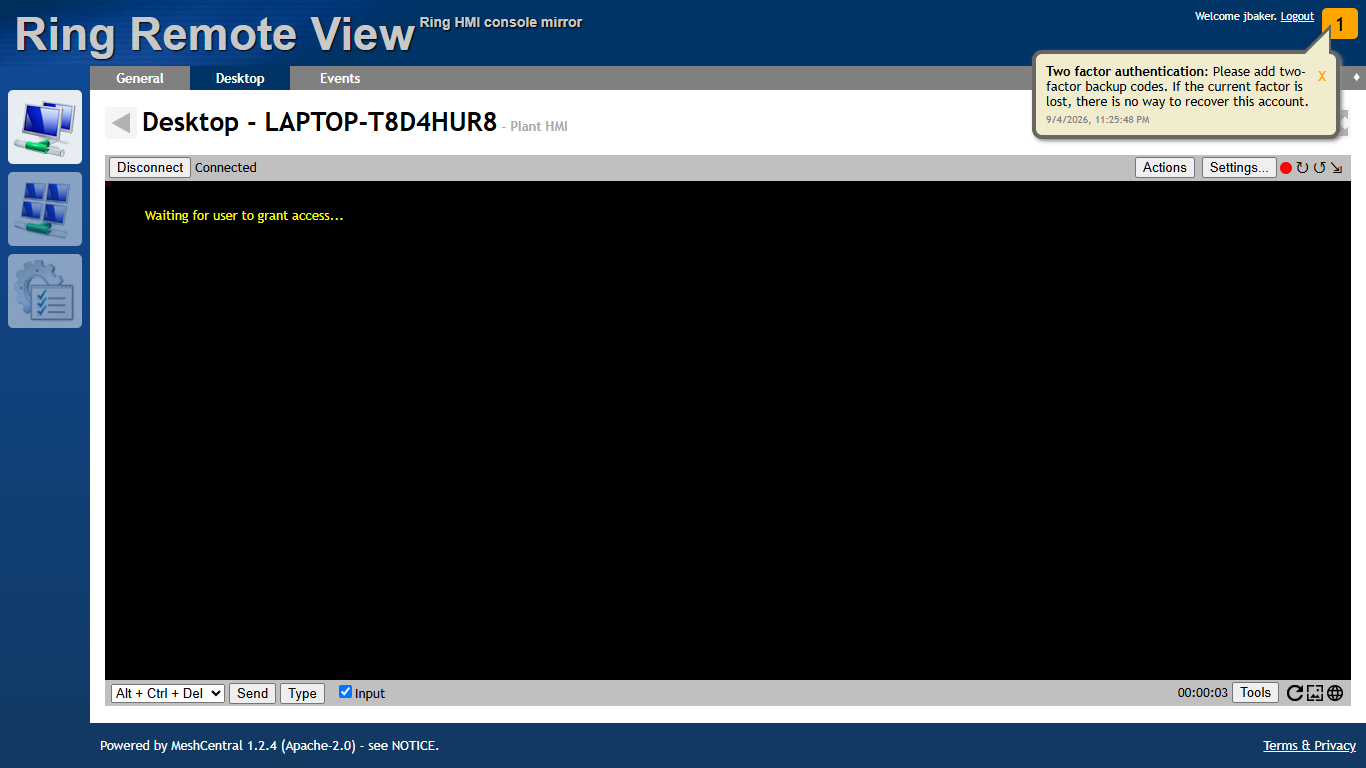
Desktop tab after Connect: "Waiting for user to grant access..." while the person at the panel decides. while the HMI's own desktop showed the consent dialog itself, naming the requesting account:
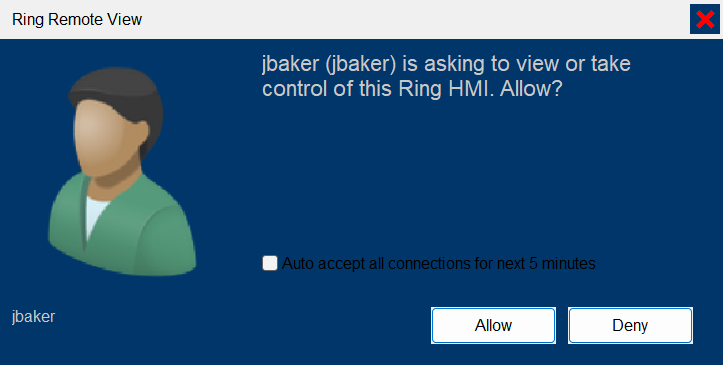
What the person at the panel sees: who is asking, Allow or Deny. That dialog also has a checkbox, "Auto accept all connections for next 5 minutes" — it's part of MeshCentral's stock consent dialog, and the person at the panel can tick it. Leave it unticked unless the shift has agreed to it; ticking it waves through every connection request for the next five minutes with no further prompt.
After 60 seconds with nobody answering, the session was refused and the browser's Desktop tab returned to Disconnected with no screen content ever shown — denial-by-timeout passed on the bench:
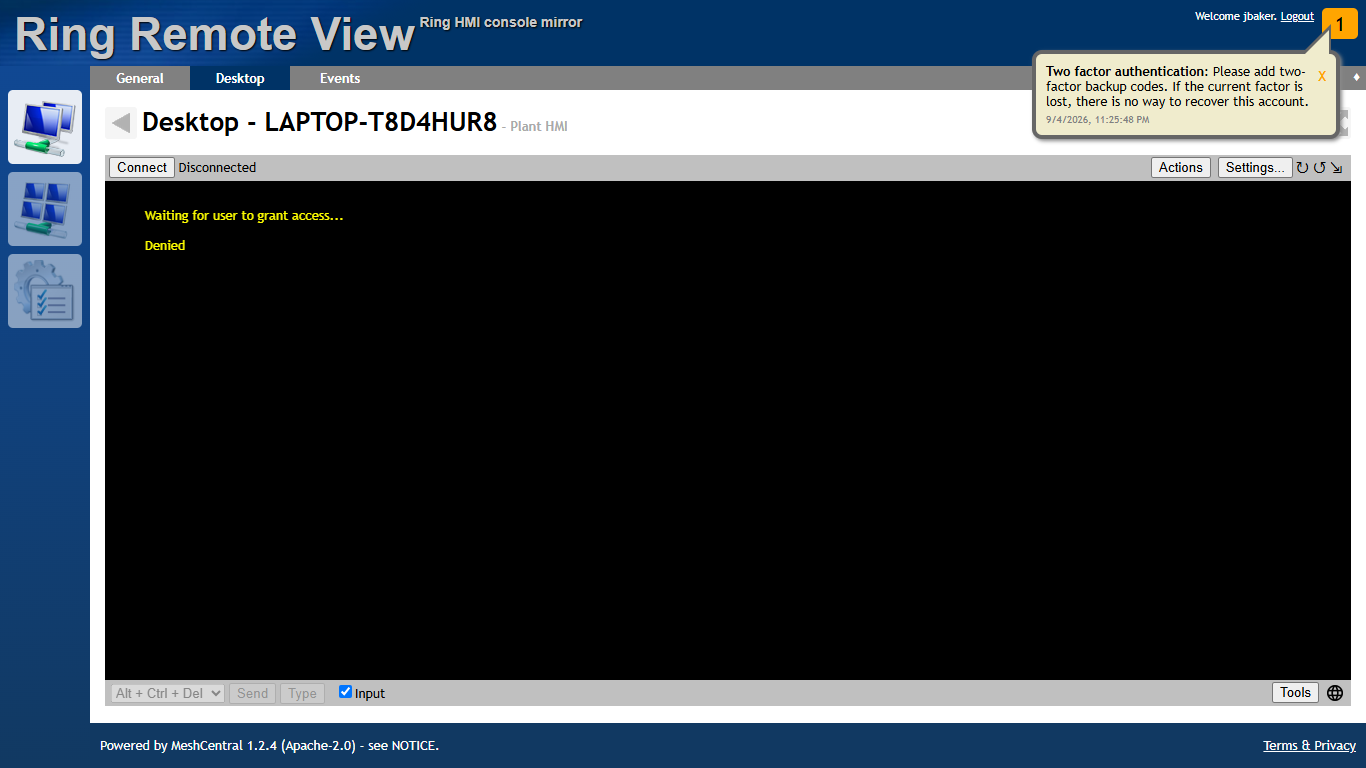
Nobody answered within 60 seconds: the session is refused and the Desktop tab shows Disconnected. A human actually clicking Deny was not separately exercised on the bench — only the automatic timeout was — so confirm an explicit Deny click also blocks the session the first time you do this for real.
Confirm the Terminal and Files tabs are simply absent for an operator account, not merely disabled — on the bench, an operator's browser showed only General, Desktop, Events. This was also checked server-side, not just in the UI: a restricted account's attempts to open a command shell or transfer a file were refused by the server itself with
Unable to route/Access denied, so the tabs being hidden reflects a real, enforced restriction, not just a UI convenience.From a PC outside the office LAN range (or outside the firewall rule's LocalSubnet scope), confirm you cannot reach the page at all, or it answers a bare 401 before any login form. This is enforced by two independent mechanisms — the firewall rule's
LocalSubnetscope and the server's own IP allow-list — but there was no second, genuinely off-subnet machine available during the 2026-09-04 bench pass to watch this end to end. Treat it as expected by configuration, not yet independently observed, until you've watched it fail from a real second machine at your own site.
When something goes wrong#
| Symptom | Likely cause | Fix |
|---|---|---|
| Cannot reach the page at all | Office NIC classified Public, the rule is managed by GPO and hasn't been added, or the rule is bound to the wrong NIC | Reclassify the NIC to Private/Domain (see Firewall and network category); ask the domain admin to add the GPO rule; re-run New-RemoteViewFirewallRule.ps1 -InterfaceAlias with the correct NIC |
| A plain "401" page appears before any login form | The client's IP is outside userAllowedIP — including the case where the hostname resolved to the machine's IPv6 address first, which isn't on the allow-list |
Make sure the HMI name resolves to its IPv4 address for LAN clients (a hosts entry, or fix DNS), or reach it by the IPv4 address directly; otherwise widen -LanCidr |
| "Invalid origin in HTTP request, click to reconnect." | Browsed by IP address on an older build, or an uppercase/dotless certificate name from a package built before the 2026-09-04 fix (see Status) | Browse to https://<hostname>:8443/ by the exact hostname; if the problem persists, reinstall with the current package |
| "Unable to access this feature until two-factor authentication is enabled." | The account hasn't finished authenticator enrolment yet | My Account → Account security → Manage authenticator app — see Right after install |
| Consent prompt at the panel is never answered | By design — an unattended panel denies after 60 seconds | Expected behavior, not a fault; ask the operator to answer promptly next time |
| Device shows Offline in My Devices | The Mesh Agent service has stopped, or antivirus quarantined MeshAgent.exe / MeshService64.exe |
Check the Mesh Agent Windows service is Running; check the antivirus product's quarantine/detection history and restore plus exclude if needed |
Installer prints ROLLBACK INCOMPLETE |
A file was locked, or an item this run created could not be removed | Clear the named items by hand, or run Uninstall-RemoteView.ps1, before re-running the install |
| PowerShell health-check scripts fail while the browser works fine | A known Windows PowerShell 5.1 trap: Invoke-WebRequest / ClientWebSocket with a certificate-validation callback throws "There is no Runspace available to run scripts in this thread" in a non-interactive host |
Use curl.exe -k https://127.0.0.1:8443/ for a hand check, or just use a real browser — the installer itself already avoids this trap |
Uninstall#
.\Uninstall-RemoteView.ps1            # removes everything
.\Uninstall-RemoteView.ps1 -KeepData  # keeps meshcentral-data + recordings
.\Uninstall-RemoteView.ps1 -Force     # skip the confirmation prompt
This removes the Mesh Agent service, the MeshCentral service, the
Ring Remote View (HTTPS <port>) firewall rule, the Start Menu and desktop
shortcuts, and the install root itself. On a bench uninstall it also
removed the "Mesh Agent WebRTC Traffic" rule described in
Firewall and network category — a side effect of the agent's
own uninstall, not something this script does directly. -KeepData
preserves meshcentral-data\ (config, certificates, the account database)
and meshcentral-recordings\ (the session evidence) instead of deleting
them with everything else. It is idempotent — safe to run again if a
previous attempt didn't finish cleanly.
Ring is not touched. The app, its own config, and the PLC connection are unaffected by any of this — the only thing that disappears is remote viewing. Uninstalling is always a safe first move if you're trying to rule out Ring Remote View while troubleshooting anything else on the HMI PC.
Status and what is still owed#
Everything in this section reflects a bench verification pass on 2026-09-04, on the developer's own laptop — not an actual plant or customer machine. Read it as "this is what has been proven, and what has not," not as a claim that this package has shipped anywhere yet.
Bench-verified: a full install, the browser walkthrough described under Right after install and Check your work as an operator account, and a full uninstall. Several of the runbook's own pre-ship penetration-test checks were confirmed to fail closed server-side, not merely in the UI: file transfer, remote command execution, an interactive shell, self-registration (disabled outright), and reaching the AMT management port (nothing is listening).
Two defects were found in this same bench pass, and are fixed in this package version:
- An uppercase certificate name broke the browser entirely with "Invalid origin in HTTP request" — Windows' own computer name is always uppercase, but a browser always lowercases the hostname it sends, and the two were being compared case-sensitively.
- A certificate name with no dot in it meant MeshCentral never offered the "Account Security" section needed to enrol an authenticator — while the domain-wide 2FA requirement blocked every device feature until one was enrolled. That combination was a genuine dead end with no way out of the UI.
Both are fixed by rendering the certificate name lowercase and with a dot (the machine's real DNS name if it has one, otherwise
<hostname>.local), and by adding an explicit list of allowed browser origins.Not yet installed at any actual site. Every result above comes from the bench, on one developer laptop.
The runbook's own pre-ship penetration test is a hard gate, and it is not fully complete. Still outstanding, and needing a second machine or a clean VM to observe properly: the raw low-level terminal-relay probe specifically (only the higher-level "run a shell" path was exercised, not the raw protocol path directly); the registry and software-inventory tab denial; a view-only account's input actually being discarded rather than applied; and reaching the server from a genuinely off-subnet machine. Also not exercised even on the bench: a human actually clicking Allow or Deny at the panel — only the automatic 60-second timeout-deny was observed.
The Inno Setup GUI wrapper has never been compiled. No
RingRemoteView-Setup.exeexists on any machine that did this work. The PowerShell installer in this chapter is the only supported install path today.
Sources verified#
remote-view/README.mdremote-view/Install-RemoteView.ps1remote-view/Provision-RemoteView.ps1remote-view/Uninstall-RemoteView.ps1remote-view/New-RemoteViewFirewallRule.ps1remote-view/Build-RemoteViewPackage.ps1remote-view/config-template.jsondocs/production-readiness/REMOTE_ACCESS_RUNBOOK.mddocs/production-readiness/REMOTE_VIEW_BENCH_EVIDENCE_2026-09-04.md(every bench observation quoted in this chapter: the install output, the browser walkthrough, the server-side denials, the two defects and their fix, the uninstall)docs/manual/engineering/09-build-deploy-release.md